
商品描述
本商品包含 AI 生成的内容。
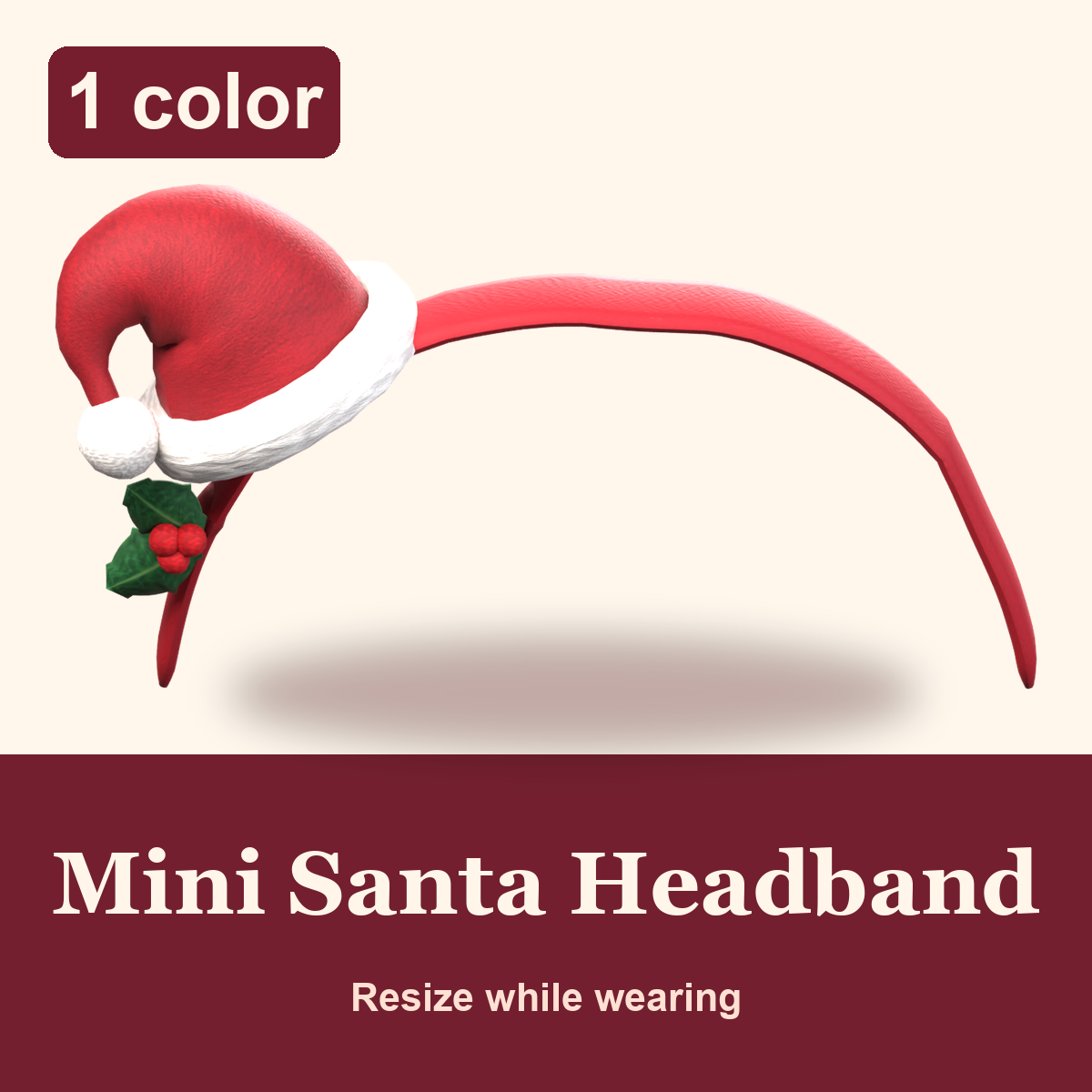
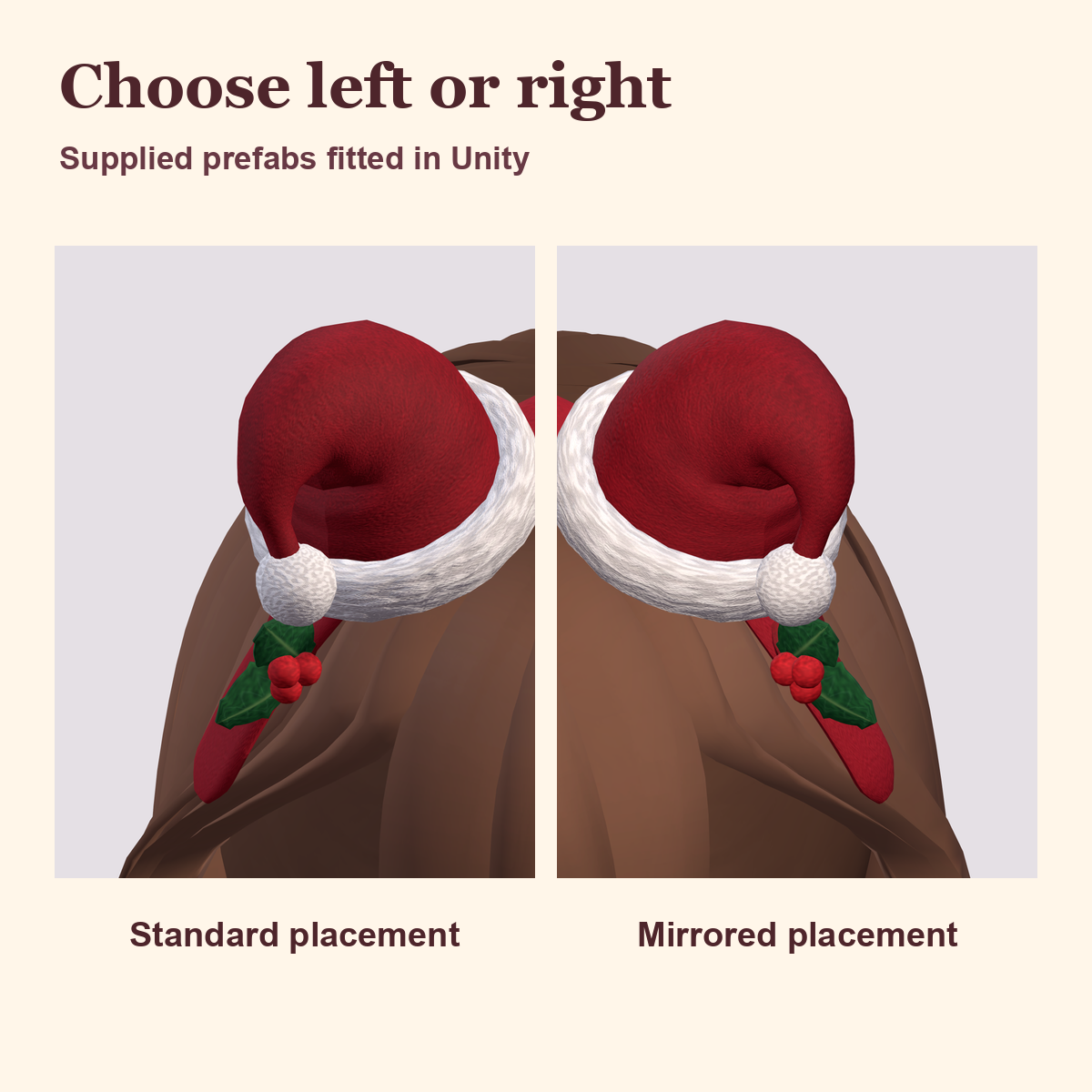
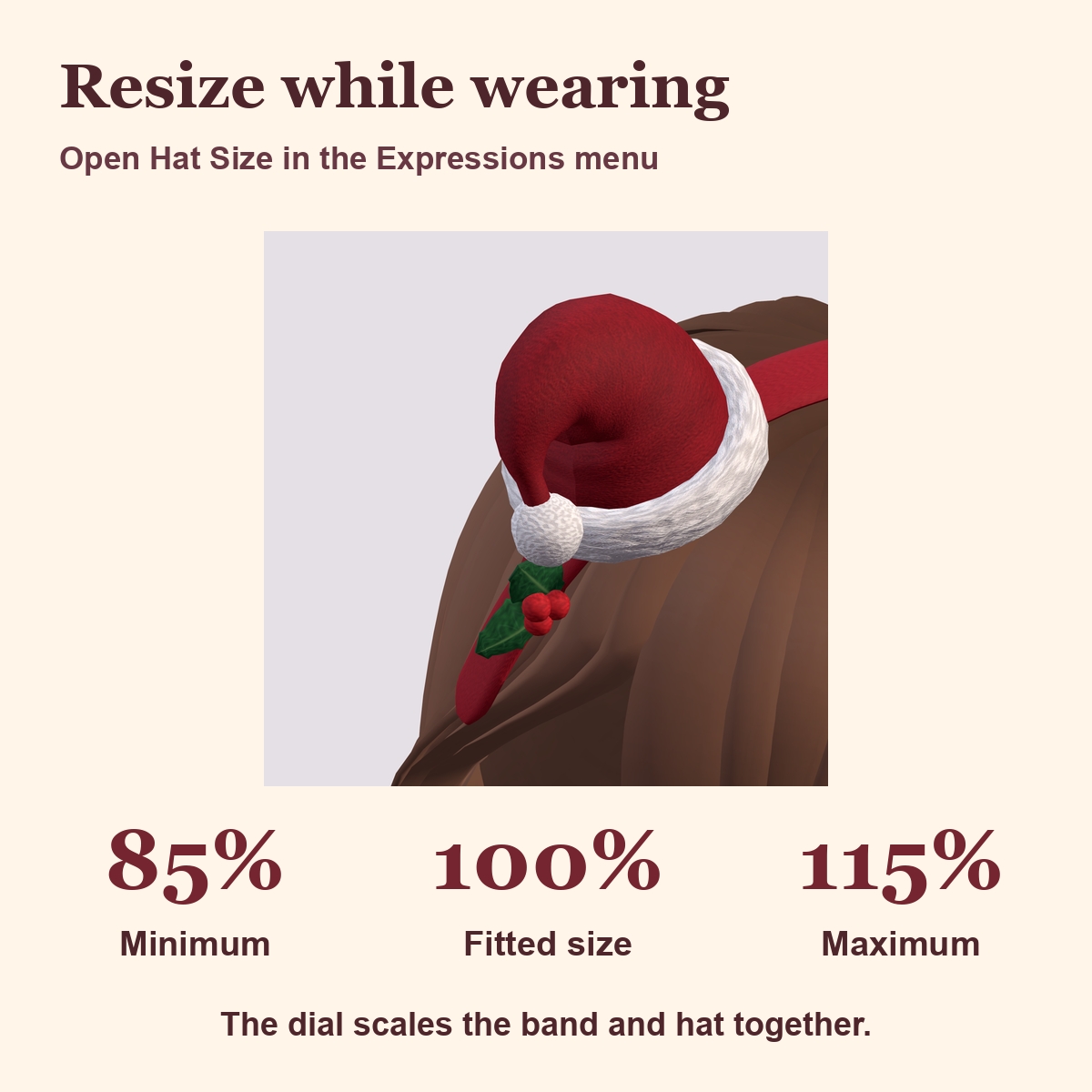
Keep your hairstyle in view with a tiny Santa hat, holly and berries on a tapered crimson headband. Pick the left or right side in Unity, then use the Hat Size dial in VRChat to resize the entire headband from 85% to 115% of your fitted size.
Triangle count · PC 5,336 / Quest 2,164. One colourway. The band is 23 mm wide at the crown.
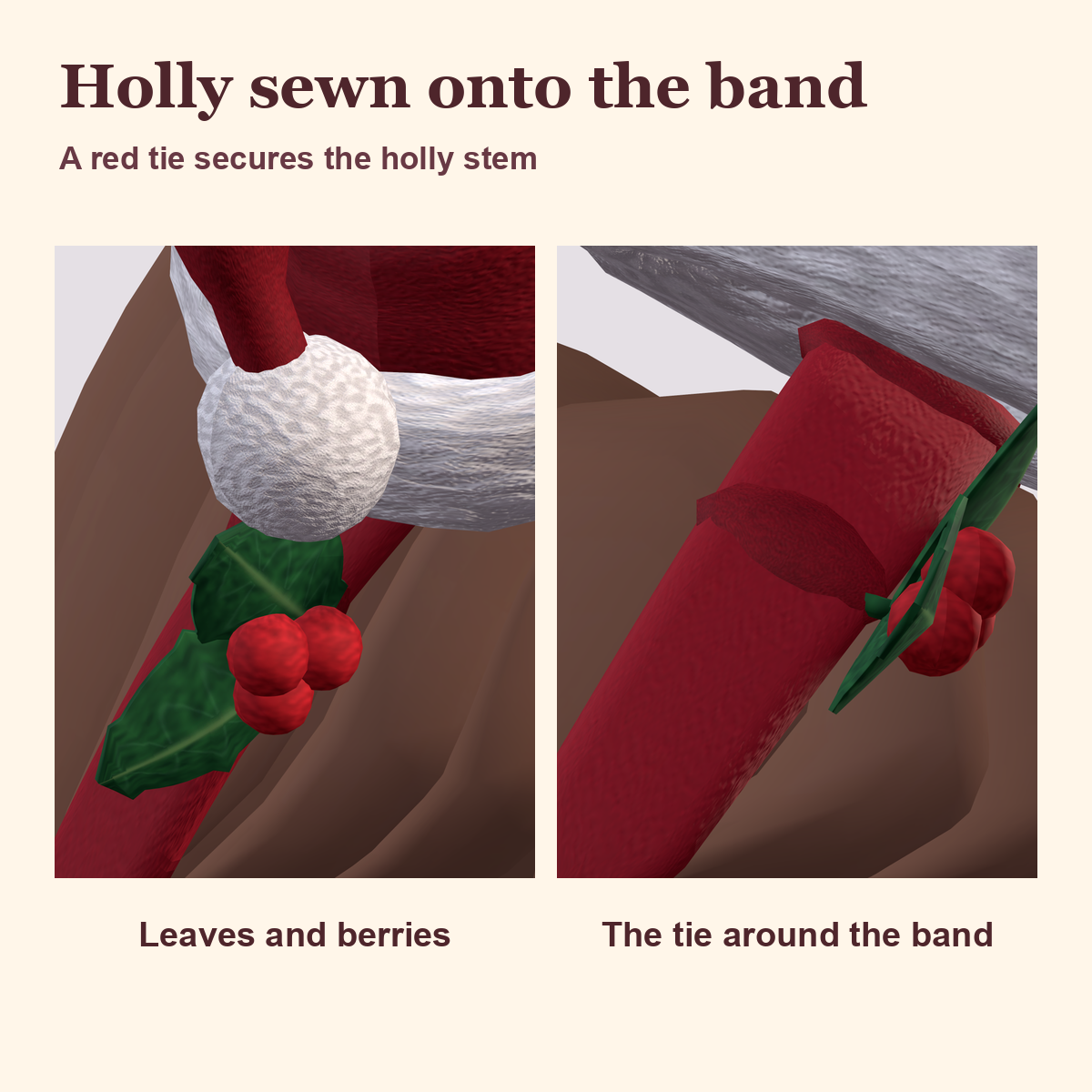
In v1.3, a red tie secures the holly stem to the headband. You can import the new package into an existing project to update it.
What's included
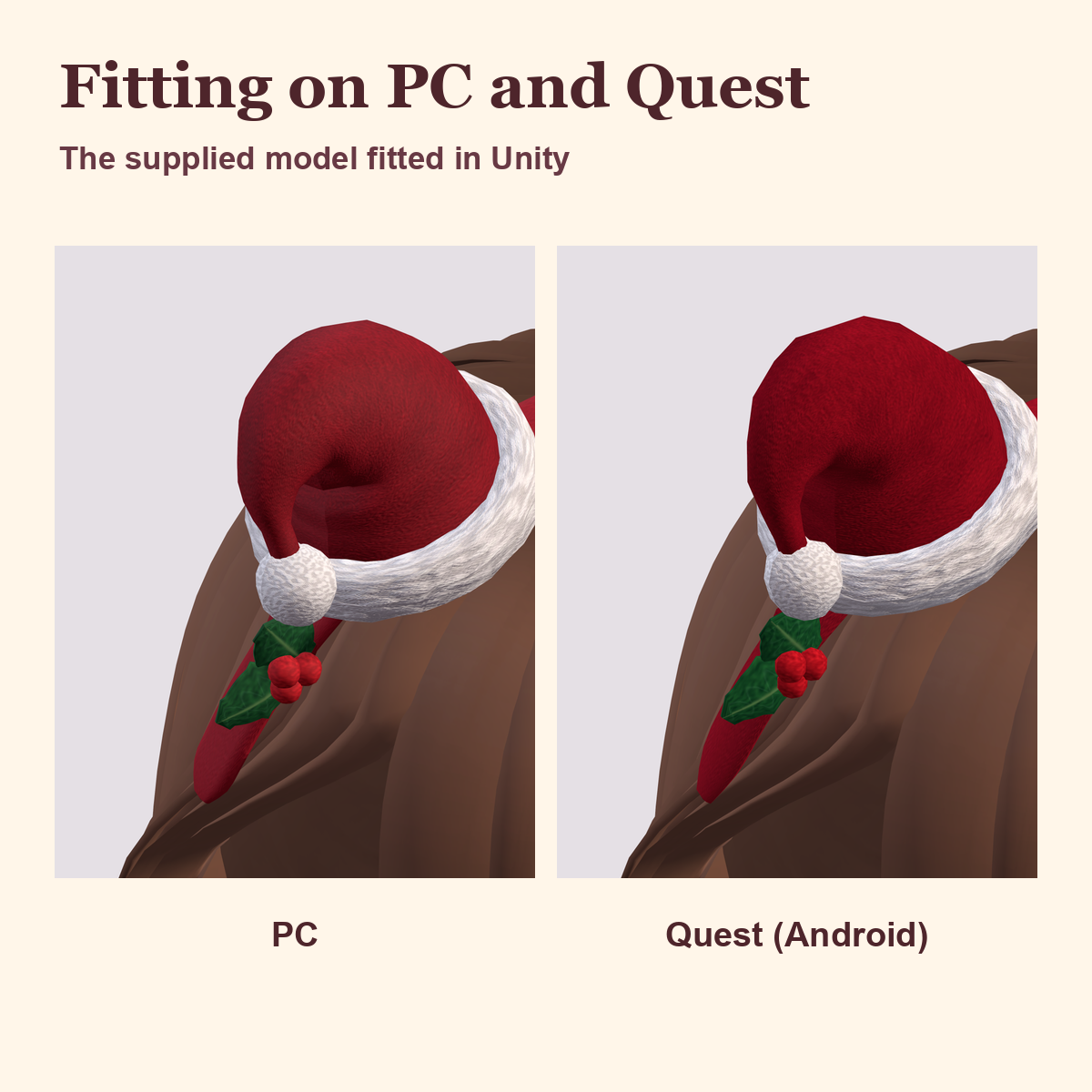
PC and Quest prefabs with both hat placements, a fitting tool with a size dial installer, editable Blender file, FBX and GLB models, colour and normal textures, English and Japanese guides and licence. One mesh and material per version. No PhysBones. Modular Avatar and lilToon are not required.
Setup in Unity
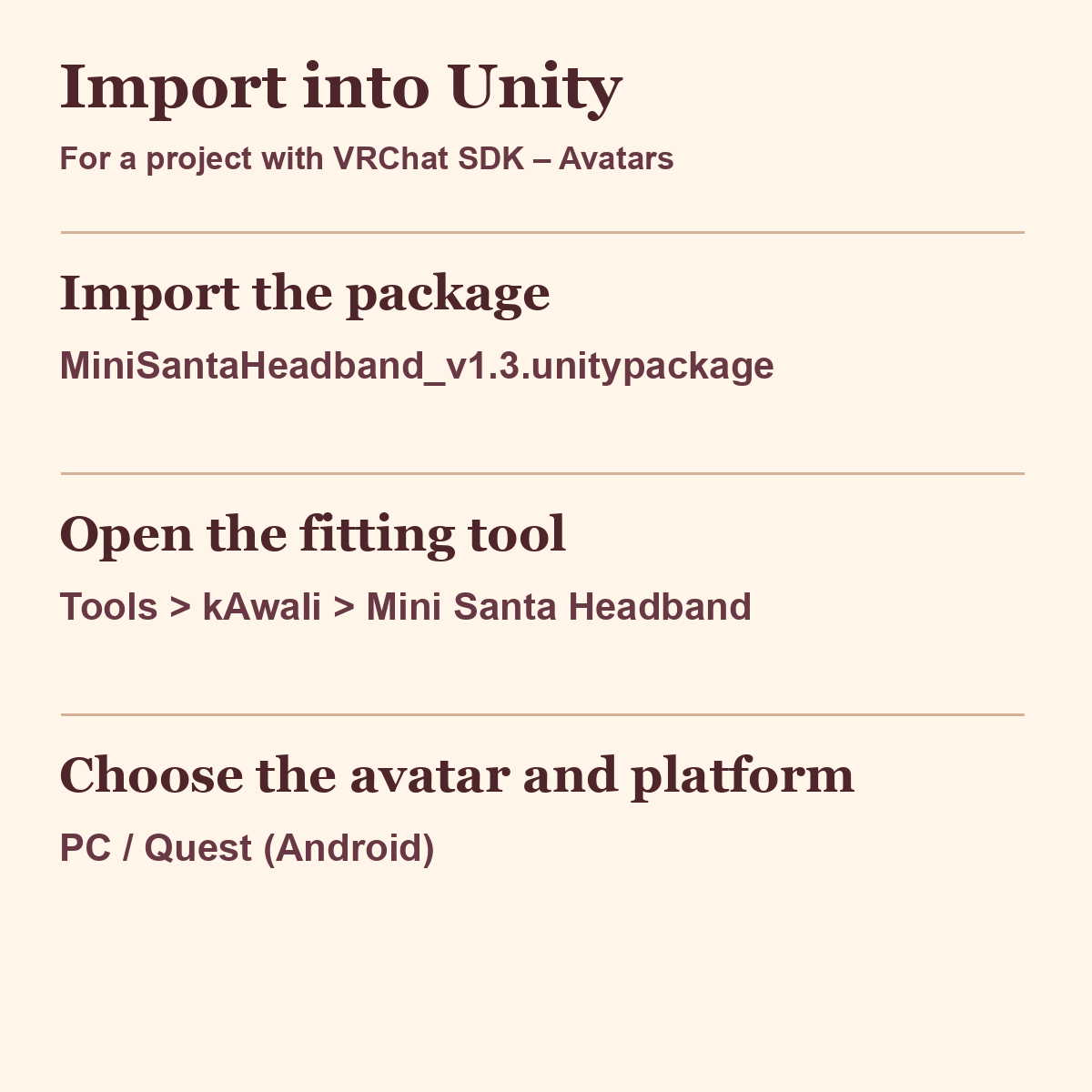
1. Download MiniSantaHeadband_v1.3.unitypackage and import all of it into a Unity 2022.3 avatar project created with VRChat Creator Companion and VRChat SDK – Avatars.
2. Place a Humanoid avatar in the scene, open Tools > kAwaIi > Mini Santa Headband, and drag the avatar root from the Hierarchy into Avatar (Humanoid). Choose PC or Quest / Android.
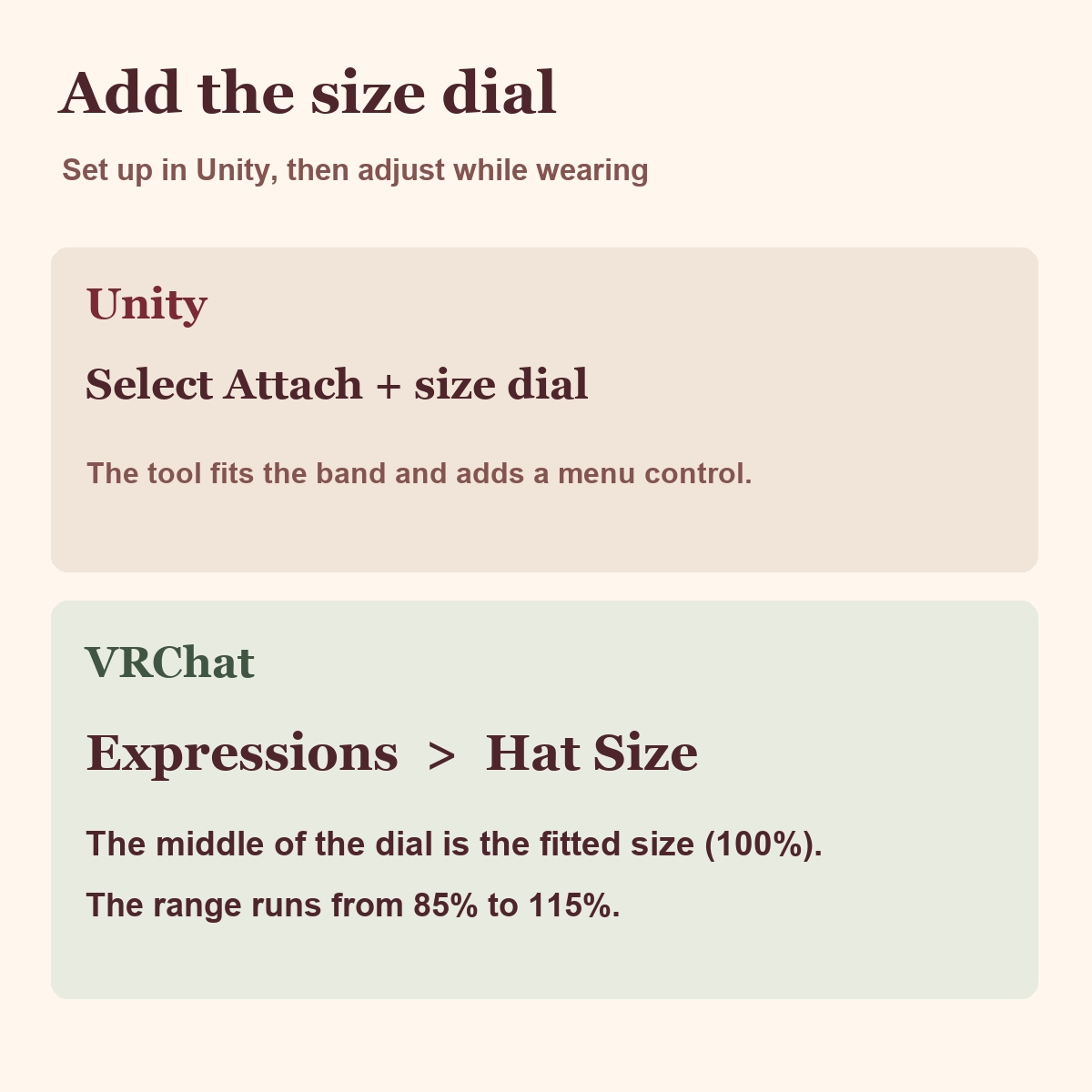
3. Click “Attach + size dial”. Check the band above the ears from the front and side. If needed, change Size or the other fit sliders, then click “Refit with these settings”. The Unity base size ranges from 0.7× to 1.4×.
4. Save the scene and upload the updated avatar using the SDK Builder. Wear that version to use Hat Size. The dial needs one saved and synced Float (eight free parameter bits). If your original menu is full, its controls remain inside Avatar Menu.
Resize it while wearing your avatar
Set the base fit in Unity, then open the VRChat Action Menu > Expressions > Hat Size to resize the entire accessory. The dial runs from 85% to 115% of your base fit. A dial reading of 0% gives 85% size, 50% restores the original size, and 100% gives 115%. The ends tuck into the hair at smaller settings and sit farther out at larger settings. Choose the size that sits just above your avatar’s ears.
Notes
Updating an existing installation
Save the scene, import v1.3 into the same project, choose the avatar and platform already in use, and click “Attach + size dial”. An existing headband with its default name directly under Head keeps its placement. See README_EN.txt for the full walkthrough.
License summary
Please read the included license. Change-of-mind refunds after accessing the files follow Jinxxy's platform policy. For an unaccessed purchase or a verified issue preventing access, see Jinxxy's refund policy. Your statutory rights apply.
https://jinxxy.com/refund-policy
Credits and AI disclosure
Created and sold by kAwaIi. AI was used in the creation of this product. The cover is a Blender render of the supplied model. Images 2 and 4 show the model fitted in Unity. The included documents refer to an earlier cover when discussing generated imagery. The sample avatar, hair and outfit are not included. Crediting kAwaIi is optional.
More Christmas accessories
Christmas Big Ribbon
https://jinxxy.com/00ookAwaIioo00/od8wT
Candy Cane Ribbon
https://jinxxy.com/00ookAwaIioo00/VW8MH
Classic Santa Hat