
Keypad, Remote Role & Permission System 🔐
商品描述
Keypad, Role & Permission System 🔐
Build a complete role-based access and permission system for your VRChat world with an easy, flexible, and highly visual workflow.
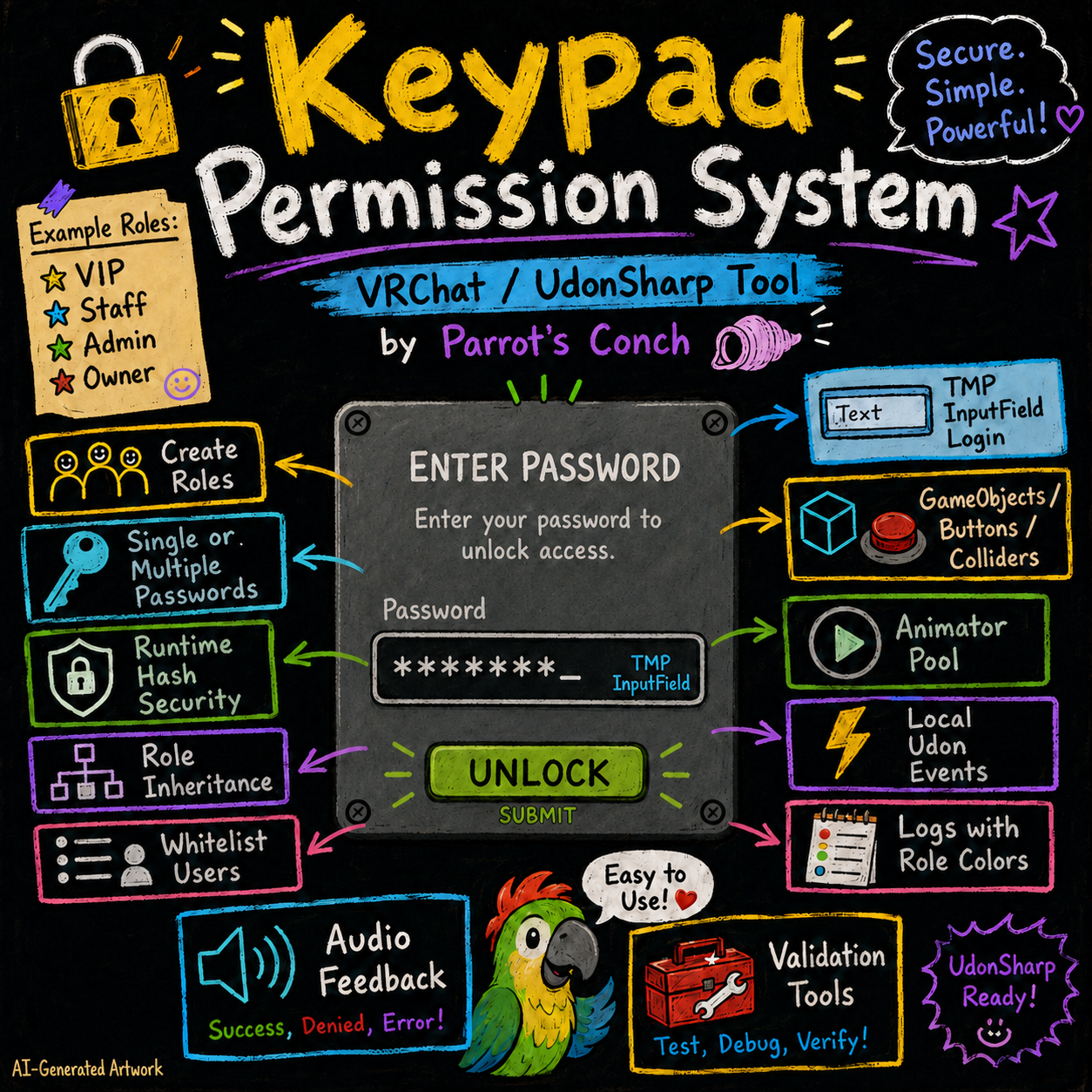
Keypad Permission System lets you create custom roles, authenticate players with passwords, automatically assign roles through whitelists, handle role requests, manage connected players, and control what each role can access inside your world. 🦜✨
Use it to protect VIP areas, staff rooms, private spaces, doors, controls, DJ booths, event features, admin tools, hidden systems, or practically any part of your world that should only be available to specific players.
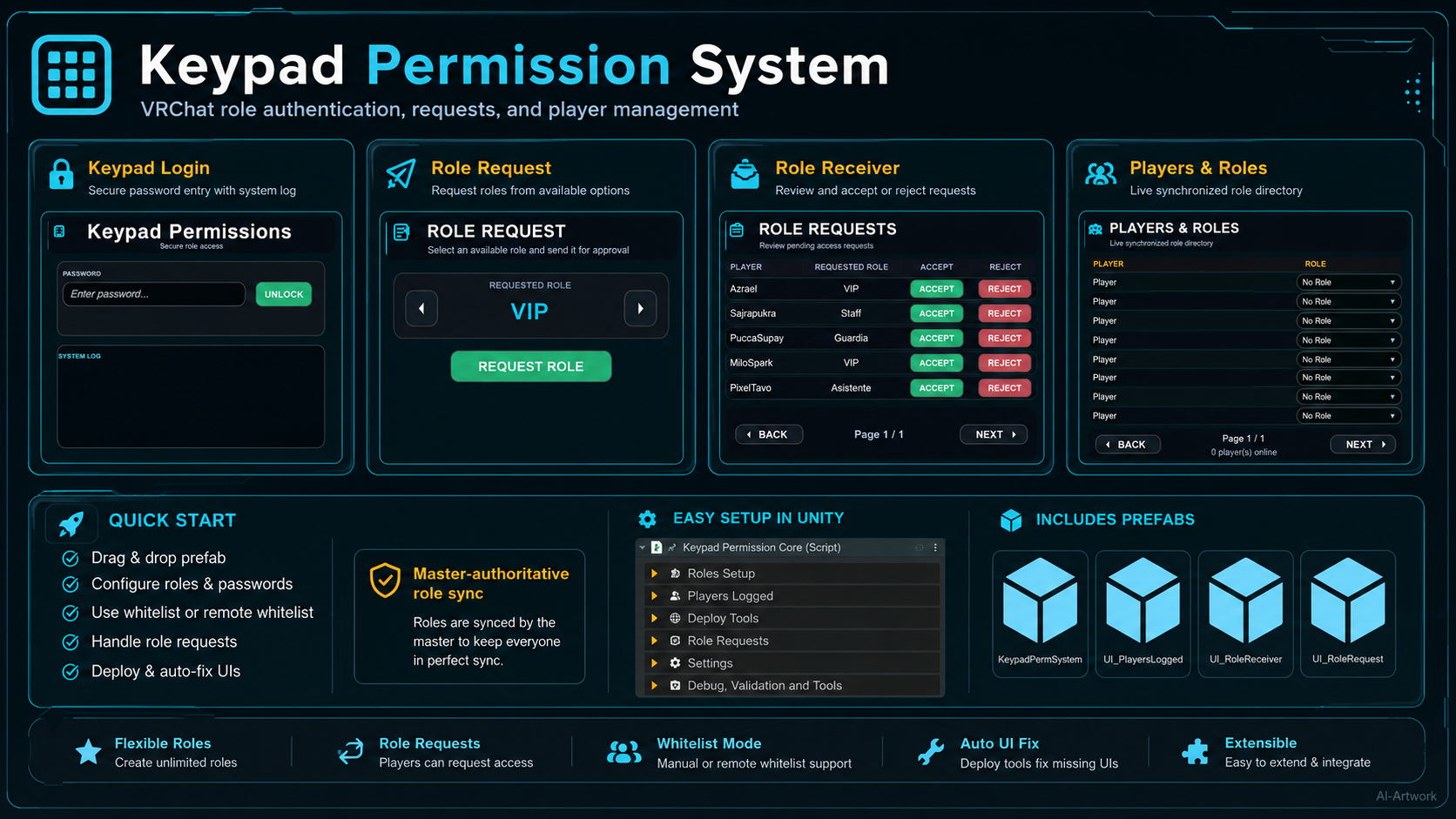
The system includes ready-to-use interfaces for password login, role requests, request administration, and live player role management, all connected to a synchronized Master-authoritative permission system.
✨ Main Features
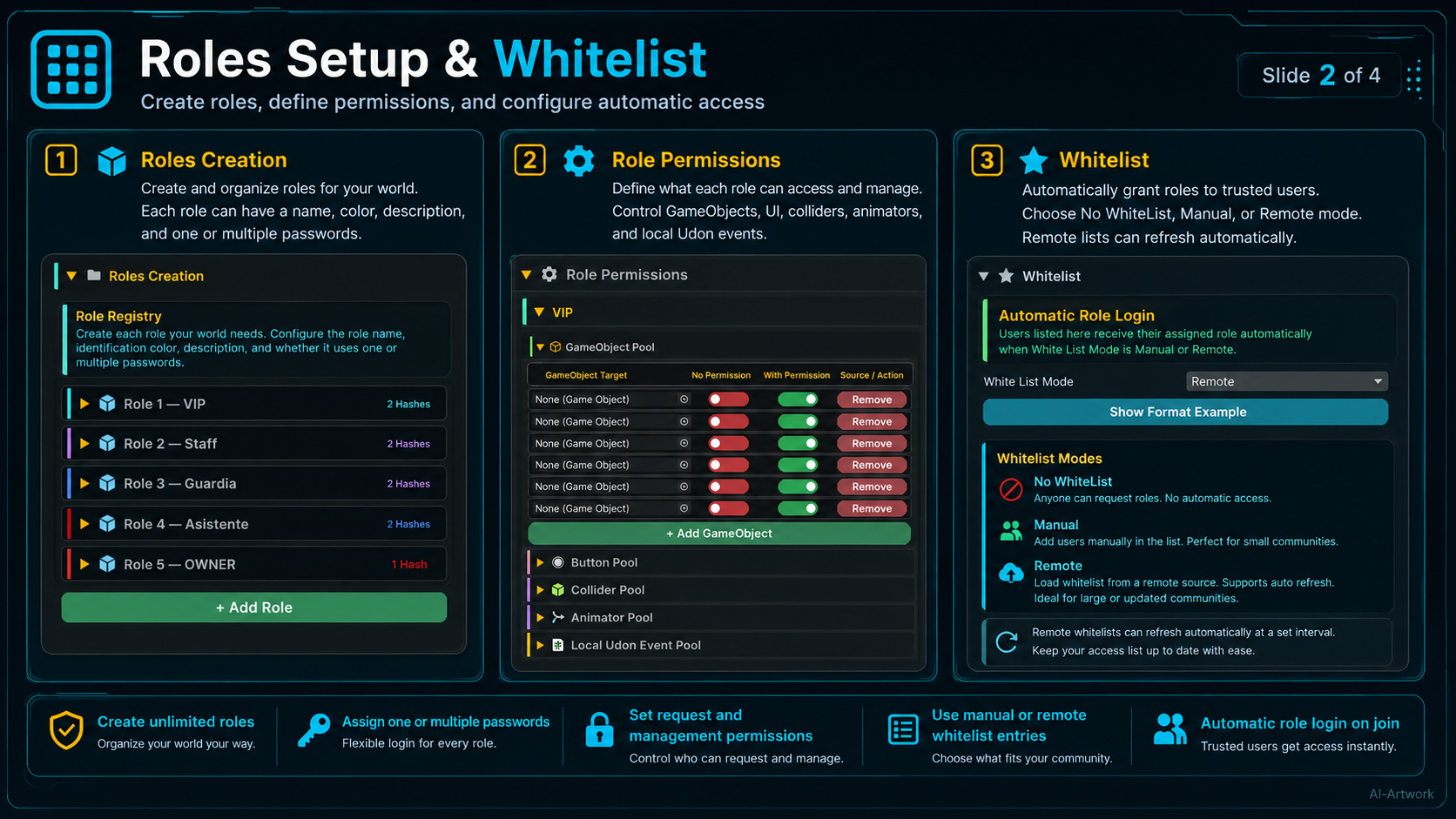
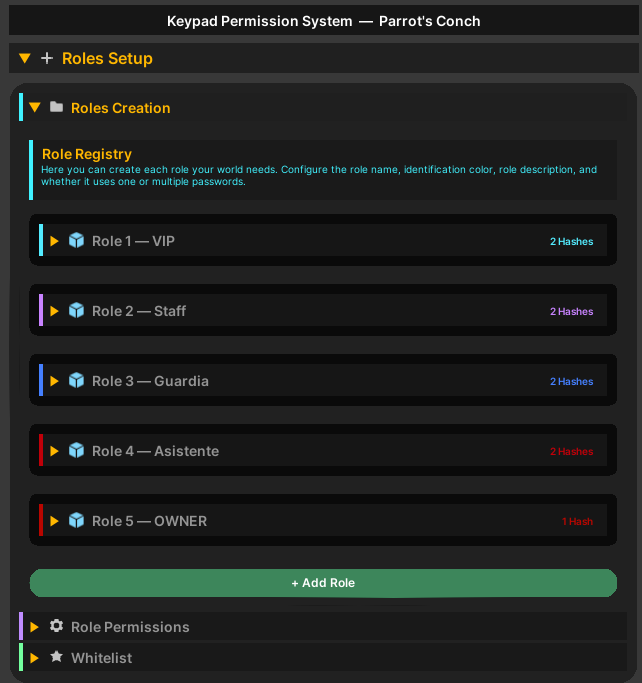
🔑 Create Custom Roles
Create as many roles as your world needs.
Examples include:
- VIP
- Staff
- Moderator
- Admin
- Owner
- DJ
- Host
- Event Guest
- Partner
- Supporter
Each role can have its own:
- Name
- Identification color
- Role description
- Password configuration
- Request permissions
- Request receiver permissions
- Player management permissions
- World access permissions
🎨 Role Colors
Every role can have its own identification color.
Role colors are used throughout the system to make players, requests, logs, and configuration easier to recognize.
Requested roles can also appear using their configured role color inside the Role Request interfaces.
📝 Role Descriptions
Give every role a custom description explaining what that role represents or what access it provides.
When a player successfully receives a role, the System Log can display the role description directly below the login information.
This is useful for explaining special permissions, membership benefits, staff responsibilities, VIP access, event privileges, and more.
🔐 Single or Multiple Passwords Per Role
Each role can use:
- A single password
- Multiple passwords
- No password at all
Multiple passwords can unlock the same role, making it easy to create different access codes for different users or situations without having to duplicate the role.
🛡️ Runtime Hash Security
Passwords are written and managed in a readable way inside the Unity editor for easy setup.
When preparing the system for VRChat, the passwords are converted into runtime hashes, so the uploaded world uses the hashed version instead of storing the readable password directly.
This adds a stronger layer of protection and makes it much harder for users to casually extract or read the original passwords from the uploaded world data. 🔒
The system also includes tools for rebuilding all configured runtime hashes directly from the Unity inspector.
🧬 Role Permission Inheritance
Roles can inherit permissions from other roles.
For example:
Owner → Admin → Staff → VIP
This allows higher roles to automatically receive lower-level permissions without having to manually duplicate every configuration.
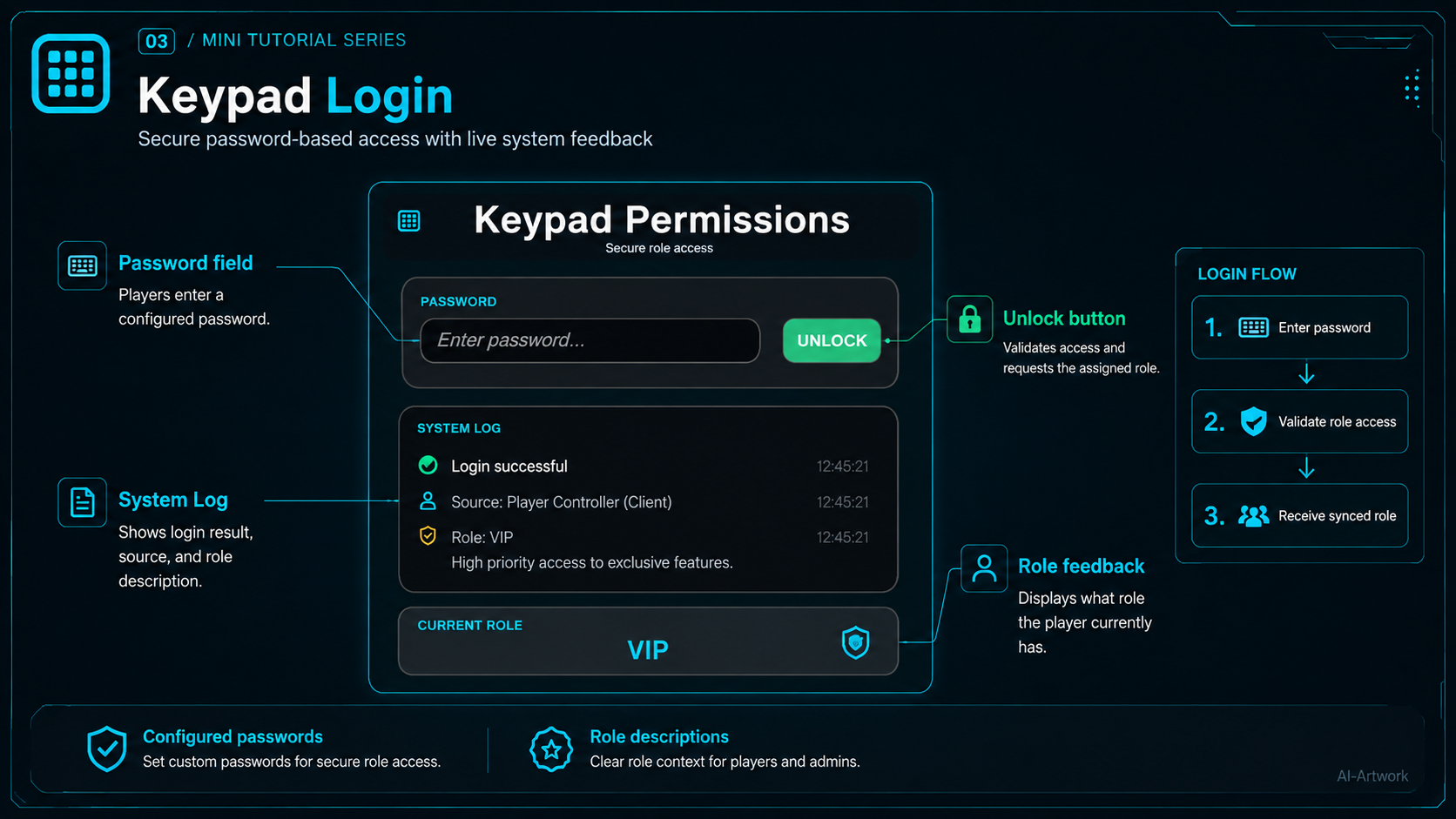
🔑 Keypad Password Login
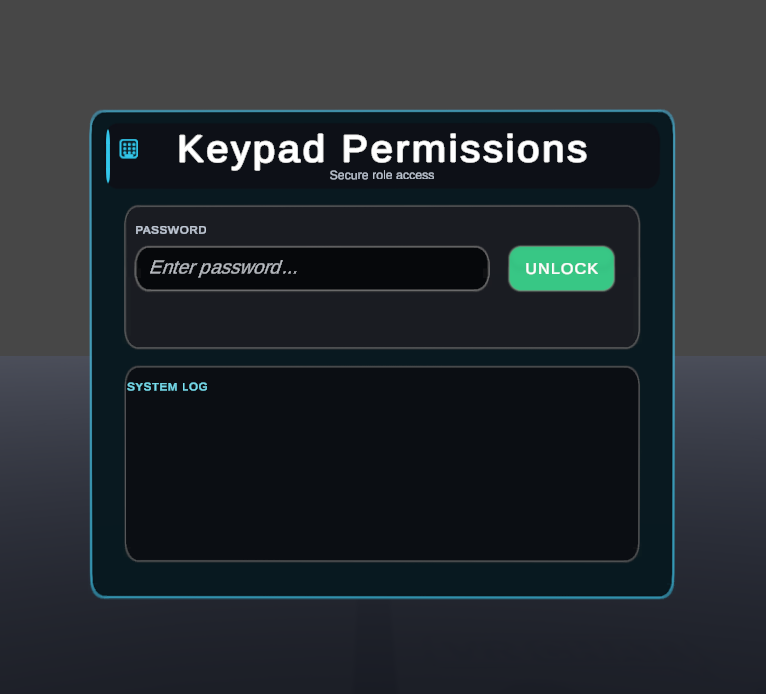
Players can authenticate using the included Keypad Permissions UI.
The login interface uses a standard TMP InputField, so players can simply type their configured password and press Unlock.
After authentication, the System Log can display:
- Player name
- Assigned role
- Login result
- Authentication source
- Role description
The login source is visually identified so players can understand how their access was assigned.
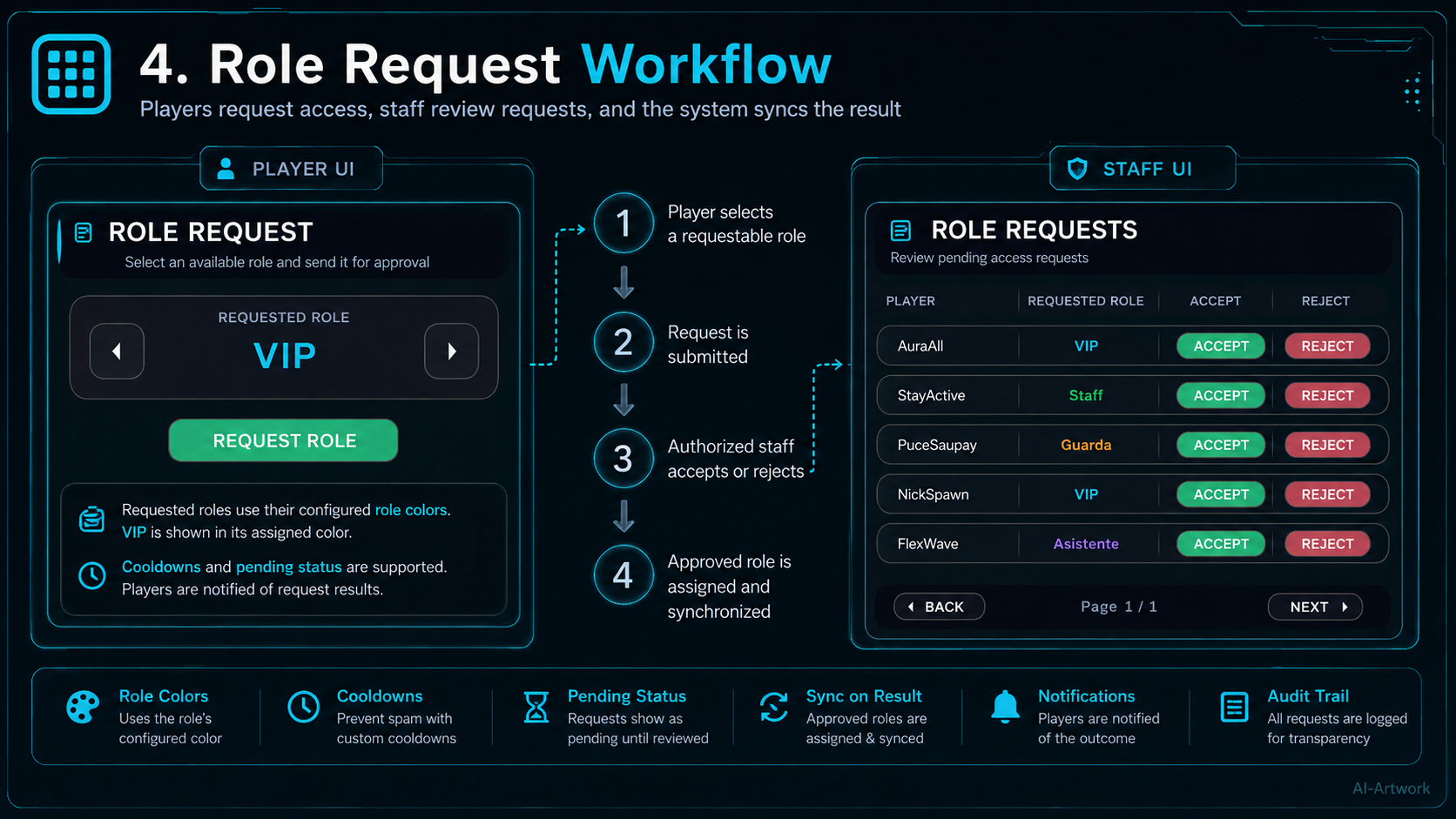
📨 Role Request System
Players do not always need a password.
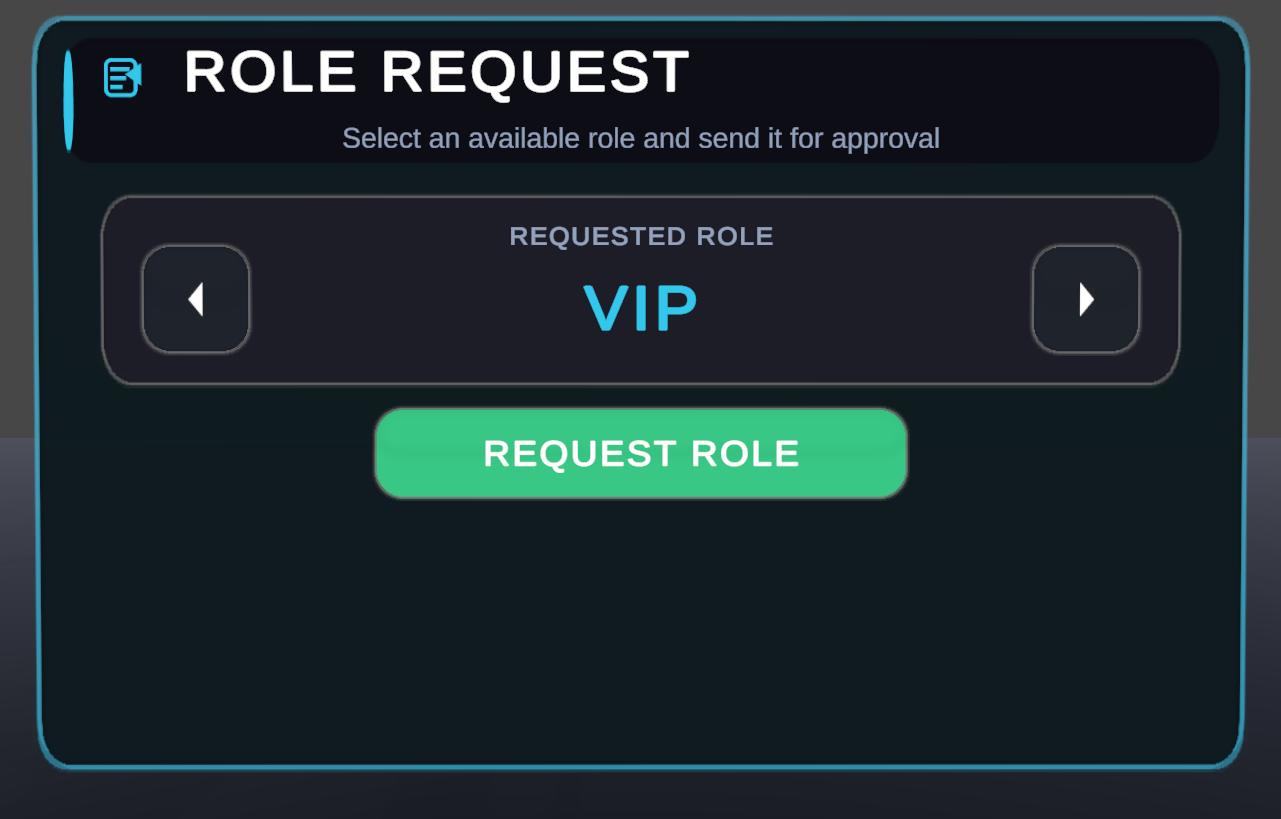
Roles with Can Be Requested enabled become available inside the Role Request UI.
Players can browse available roles and submit a request for approval.
The selected role remains visible while the request is processed, and requested roles use their configured identification colors.
The request system supports:
- Pending requests
- Accepted requests
- Rejected requests
- Cancelled requests
- Request cooldowns
- Rejection cooldowns
- Request status feedback
🛡️ Role Request Administration
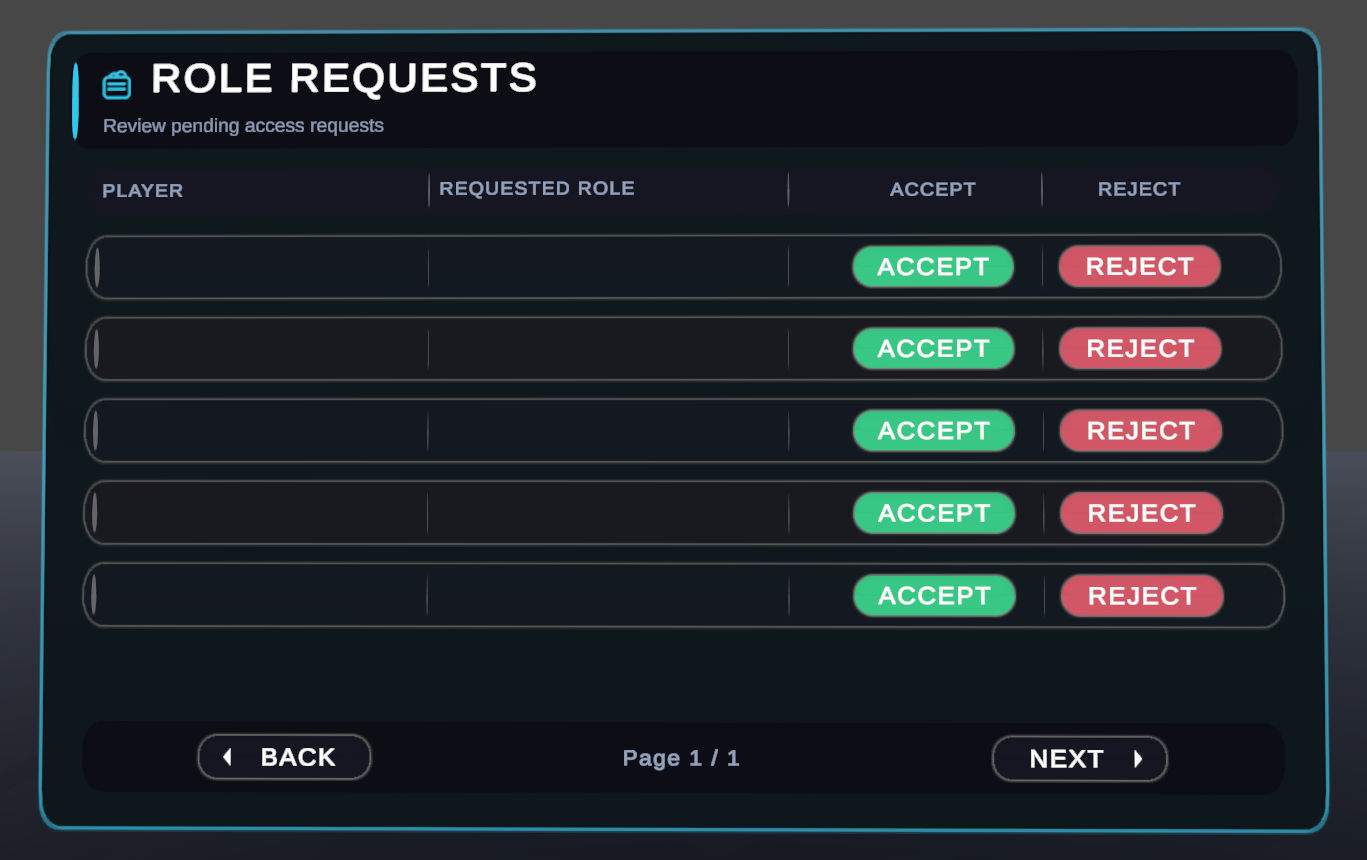
Authorized users can receive and manage incoming role requests through the included Role Receiver UI.
Any role configured with Receive Role Requests can be allowed to review requests.
Authorized staff can:
- View the requesting player
- View the requested role
- Accept a request
- Reject a request
- Browse multiple request pages
When a request is accepted, the role is assigned by the Master and synchronized across the instance.
👥 Players & Roles Management
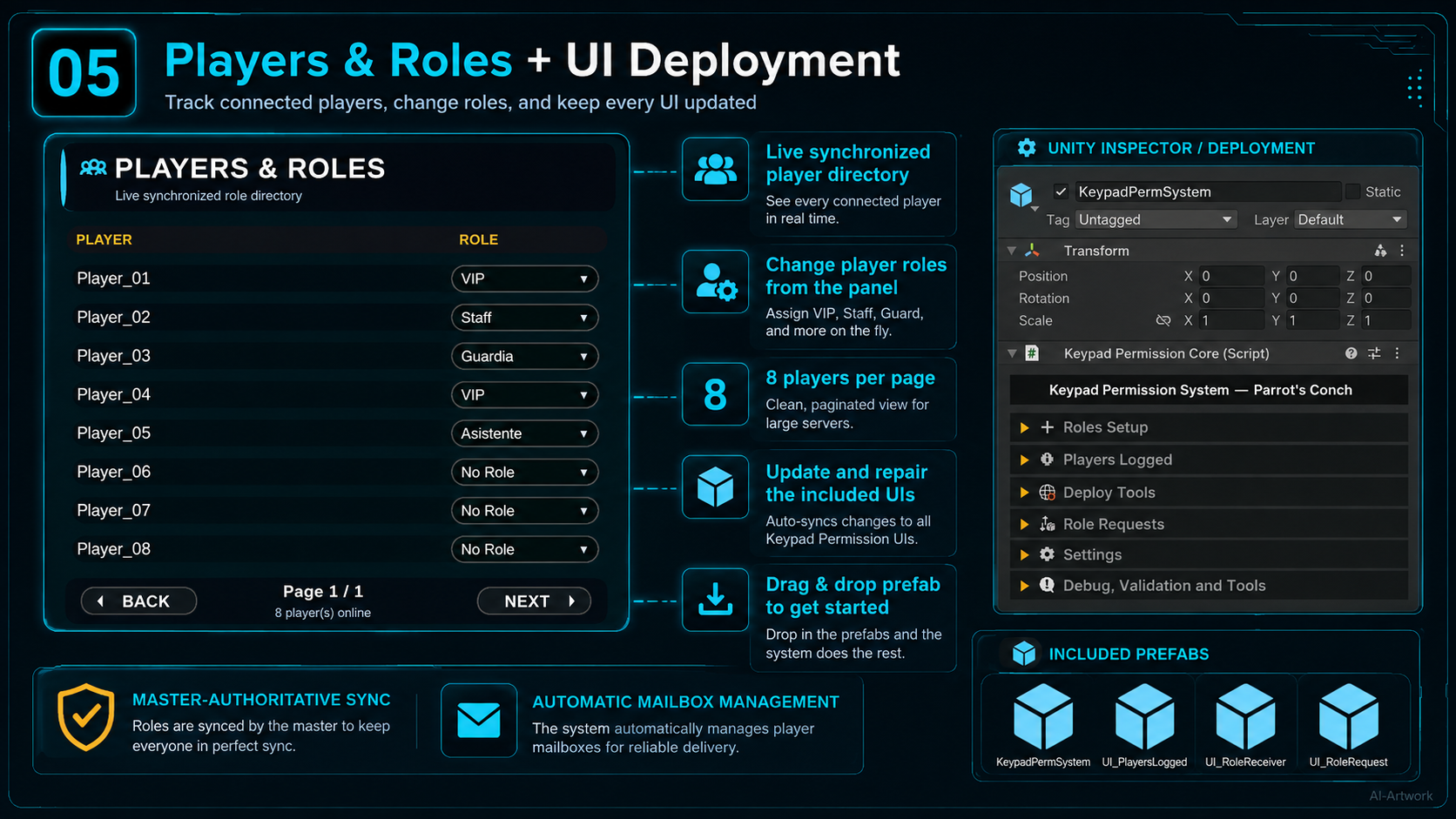
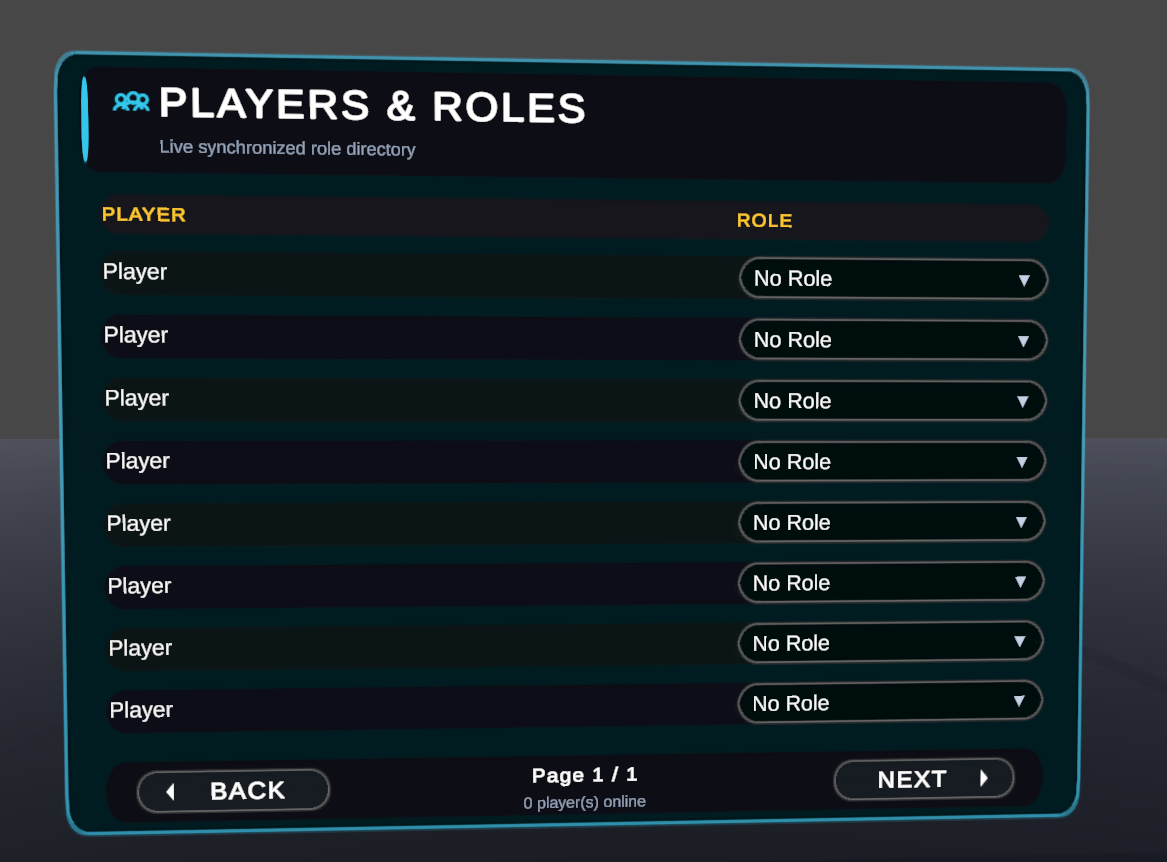
The included Players & Roles UI provides a live synchronized directory of players currently inside the instance.
It displays up to 8 players per page and automatically updates when:
- A player joins
- A player leaves
- A player's role changes
Roles with the proper management permission can also change another player's role directly from this panel.
This is especially useful for staff, moderation teams, event management, and live world administration.
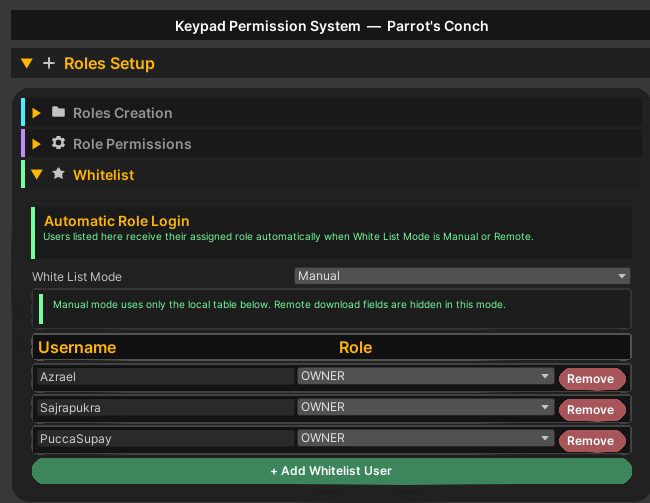
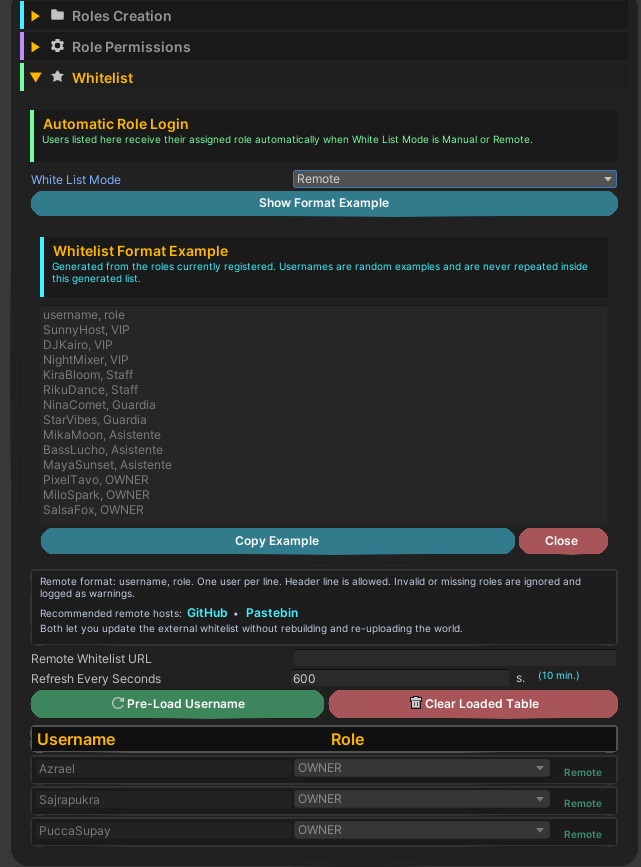
⭐ Automatic Whitelist Login
Automatically assign roles to trusted players when they enter your world.
The system supports three whitelist modes:
No WhiteList
Disables automatic whitelist authentication.
Manual
Configure players and their assigned roles directly inside the Unity inspector.
Remote
Load a whitelist from a remote text source and automatically assign roles when matching users join.
Remote whitelists can refresh automatically at a configurable interval without requiring the world to be rebuilt.
The inspector also provides:
- Remote format examples
- Recommended remote hosting options
- Pre-loading tools
- Manual clearing tools
- Remote refresh configuration
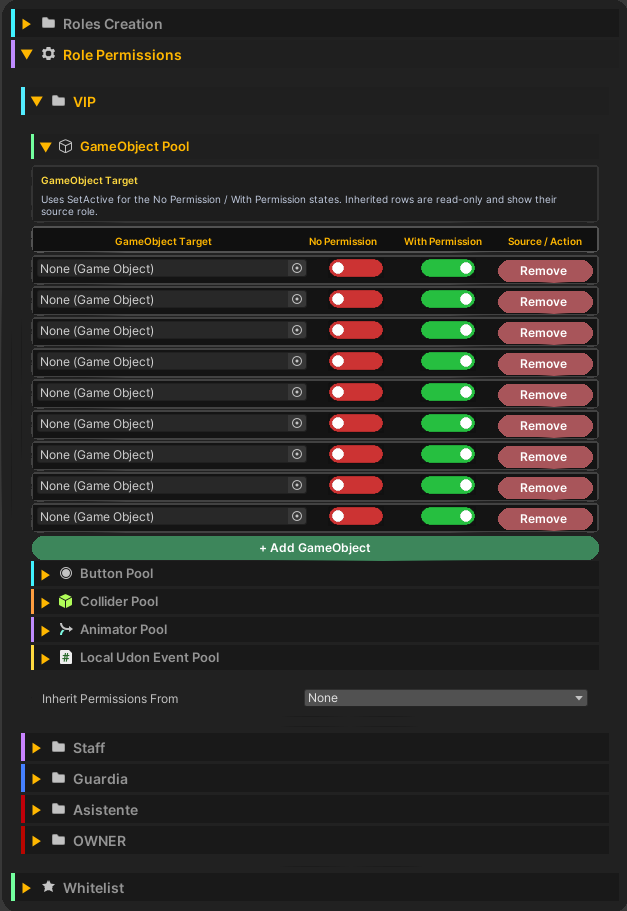
📦 Permission Pools
Every role can control multiple types of world permissions.
Available permission pools include:
- GameObjects
- Buttons
- Colliders
- Animators
- Local Udon Events
Each permission can define what should happen when the player has permission and when the player does not have permission.
🎮 GameObject Permissions
Automatically enable or disable GameObjects depending on the local player's assigned role.
Perfect for:
- Restricted interfaces
- VIP objects
- Staff tools
- Secret areas
- Special effects
- Exclusive world features
🔘 Button Permissions
Control whether specific UI or world buttons can be used depending on the player's role.
This allows the same interface to exist for everyone while restricting interaction to authorized users.
🚪 Collider Permissions
Enable or disable colliders based on permission state.
This can be used for:
- VIP doors
- Staff entrances
- Restricted zones
- Private rooms
- Event-only access areas
🎞️ Animator Pool
Control Animator parameters according to the player's permission state.
Supports:
- Bool
- Int
- Float
- Trigger
This makes it possible to connect the permission system to doors, animated panels, lights, world machinery, effects, and other Animator-driven systems.
⚡ Local Udon Events
Trigger local Udon events when permissions are applied.
This allows the Keypad Permission System to communicate with other Udon systems in your world without requiring direct integration into the main permission code.
📜 Advanced System Logs
The UI includes customizable system feedback for authentication and role changes.
Logs can display information such as:
- Username
- Role
- Authentication source
- Role description
- Login result
- Request result
Available tokens include:
{username}{role}{role_desc}
Example:
Hello {username}, you now have {role} access. Enjoy your time at our club.
Role names and authentication sources can also use different colors for clearer visual feedback.
📬 Player Mailbox Networking
The networking system uses dedicated Player Mailboxes for player-to-Master communication.
Each connected player receives an individual mailbox automatically managed by the Master.
Mailboxes are used for actions such as:
- Password authentication
- Role requests
- Request decisions
- Player role changes
- Logout operations
The system automatically maintains a fixed pool of 80 Player Mailboxes, matching the supported player capacity.
Players do not take ownership of the main permission system.
👑 Master-Authoritative Synchronization
The Master is the authority for the official role state.
Players submit actions through their Player Mailbox, while the Master validates the request, processes it, applies the result, and synchronizes the updated state.
This architecture helps prevent clients from competing for ownership of the main permission system and keeps role information consistent across the instance.
The system also handles Master changes and automatically repairs its authority and mailbox state when required.
⏳ Waiting for Master Feedback
When a player performs an action that requires Master validation, the UI can display an animated Waiting for Master / Waiting for Response overlay.
While waiting:
- The interface is temporarily blocked
- Additional actions cannot be submitted
- A loading indicator shows that the request is being processed
- The UI automatically unlocks when the response is received
This provides clearer feedback instead of leaving the player wondering whether an action worked.
🔊 Audio Feedback
Audio feedback can be enabled or disabled globally using Use Audio.
The system supports sounds for actions such as:
- Successful login
- Failed login
- Whitelist authentication
- Role requests
- Incoming role requests
- Player role management
- Other access results
When audio is played, the AudioSource is positioned at the local player's head so feedback is heard naturally by the player.
Audio clips can be replaced with your own sounds.
🛠️ UI Auto Binder
Every included UI can use the UI Auto Binder to automatically detect, connect, repair, and validate its required components.
The Auto Binder can reconnect:
- Buttons
- TMP fields
- System references
- Request rows
- Waiting panels
- Runtime UI relays
- Udon event bindings
The Update UI button can also force a complete refresh and repair of the selected interface.
🧰 UI Fix & Deployment Tools
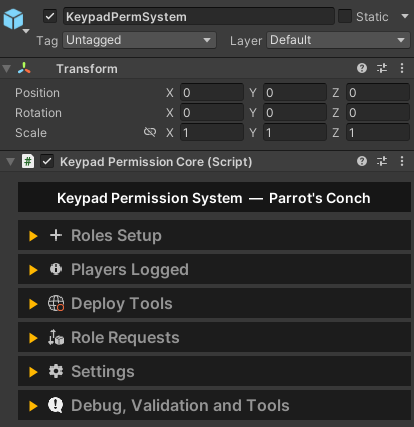
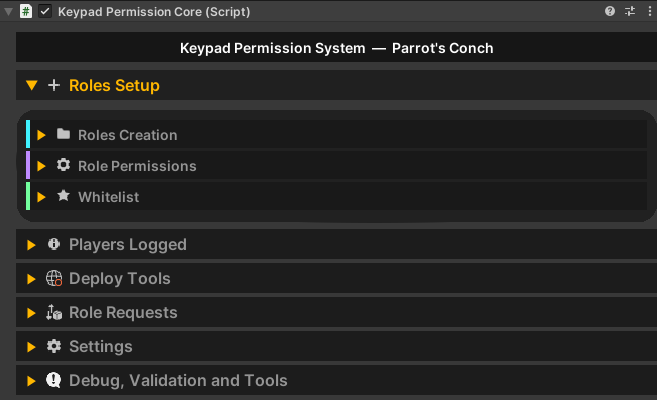
The main Keypad Permission System inspector includes tools for deploying and repairing the included interfaces.
You can update:
- Keypad Login UI
- Role Request UI
- Role Receiver UI
- Players & Roles UI
The deployment tools automatically configure required references and components.
Role Request and Role Receiver deployment options are automatically hidden when the Role Request System is disabled.
🔎 Debug, Validation and Tools
The system includes a visual configuration validator to help detect setup problems before uploading your world.
Validation can detect issues such as:
- Missing references
- Invalid role configuration
- Password problems
- Missing UI components
- Broken Udon bindings
- Whitelist configuration problems
- Mailbox problems
- Permission configuration issues
Validation results use clear visual states:
🟢 Correct
🟠 Warning
🔴 Error
Warnings and errors can be clicked directly in the inspector to focus the related object, and tooltips explain what should be corrected.
🎮 Example Uses
The system can be adapted to many different VRChat world designs.
✨ VIP Areas
Give supporters or special members access to exclusive rooms and features.
🚪 Door Access Control
Restrict doors or entrances to specific roles.
🏠 Private Rooms
Create private lounges, staff rooms, meeting rooms, backstage areas, or reserved spaces.
🎧 DJ Booth Controls
Allow only DJs or staff to access music, lighting, stage, or booth controls.
🛠️ Admin Panels
Protect moderation, management, maintenance, or world-control interfaces.
🎉 Special Events
Create temporary event roles, invitation codes, guest access, or event staff permissions.
👑 Owner Controls
Keep sensitive world tools available only to owners or administrators.
🎛️ Club Management
Separate permissions between Hosts, DJs, Staff, Security, VIPs, and Owners.
🔒 Restricted Zones
Allow selected users to enter specific parts of the world while keeping them hidden or inaccessible to everyone else.
🎟️ Access Codes
Distribute different passwords for events, communities, partners, guests, or promotional access.
⭐ Community Membership Roles
Automatically identify trusted members through Manual or Remote Whitelists.
🧪 Creator & Debug Tools
Protect development controls and testing features from normal visitors.
🎭 Staff Hierarchies
Use role inheritance to create structured permission levels such as VIP → Staff → Admin → Owner.
📨 Role Applications
Let players request a role and allow authorized staff to approve or reject them directly inside the world.
🌟 Hidden World Features
Unlock secret interactions, GameObjects, effects, rooms, interfaces, or easter eggs for selected roles.
🚀 Plug & Play Setup
The system is designed to be easy to install and configure.
Simply go to:
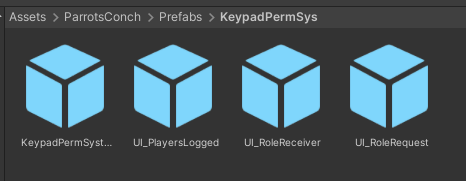
Assets/ParrotsConch/Prefabs/KeypadPermission.prefab
Drag & drop the prefab into your scene and begin configuring the KeypadPermSystem component.
From there you can:
- Create your roles.
- Configure role names, colors, and descriptions.
- Add one or multiple passwords.
- Configure permission pools.
- Enable Role Requests if needed.
- Configure Manual or Remote Whitelist access if desired.
- Choose which roles can receive requests or manage other players.
- Position the included UI prefabs wherever you want them.
- Use the deployment and Auto Binder tools to update or repair the interfaces.
- Build your VRChat world.
The system automatically handles its runtime synchronization, Player Mailboxes, role state, and UI updates. ✅
The included interfaces are already prepared for use, and audio feedback can be enabled, disabled, or customized depending on your world.
⚠️ Important Notes
This system is designed for role management and world access control inside VRChat worlds.
It is ideal for organizing access to VIP rooms, staff areas, private zones, event spaces, DJ booths, administrative controls, special features, and other role-restricted content.
The permission system uses a Master-authoritative architecture for role state and synchronized Player Mailboxes for player requests.
Password hashing helps avoid keeping readable passwords directly in the runtime configuration, but it should not be treated as equivalent to authentication performed by a private external server. VRChat world logic ultimately executes on user clients.
Remote Whitelists rely on the player information that VRChat exposes to worlds and should be configured using the supported identity information expected by the system.
The goal of the system is to provide world creators with a cleaner, more visual, synchronized, and manageable way to control access while keeping configuration approachable from inside Unity. 🔐✨
🤖 AI-Assisted Content Disclaimer
This product was fully conceptualized and designed by Parrot’s Conch. The original product idea, feature planning, permission structure, pseudocode, and core code matrix were created by the human developer behind Parrot’s Conch. This product was developed in part with AI assistance. AI tools were used to assist with portions of coding, artwork, logos, promotional text, tutorials, documentation, and other development-related assets.
Testing, review, functionality checks, editing decisions, final configuration, product preparation, and packaging were completed by the human developer behind Parrot’s Conch. Final files were reviewed, edited, configured, tested, and packaged by Parrot’s Conch.