
商品描述
本商品包含 AI 生成的内容。
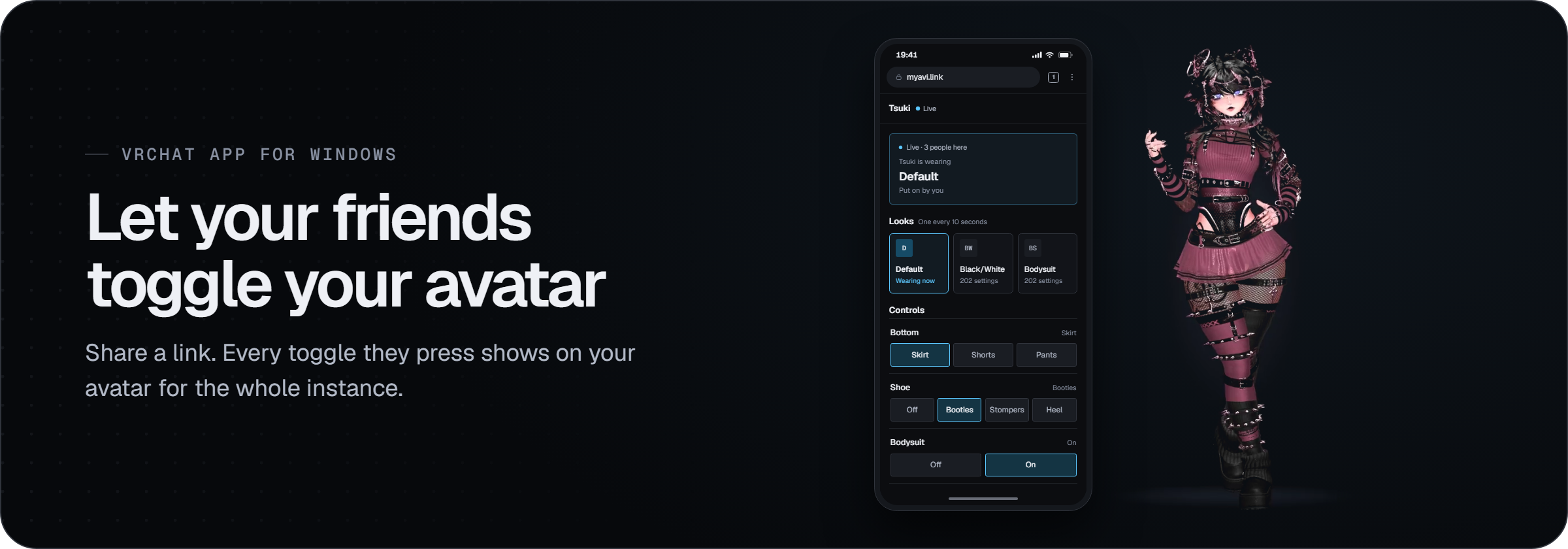
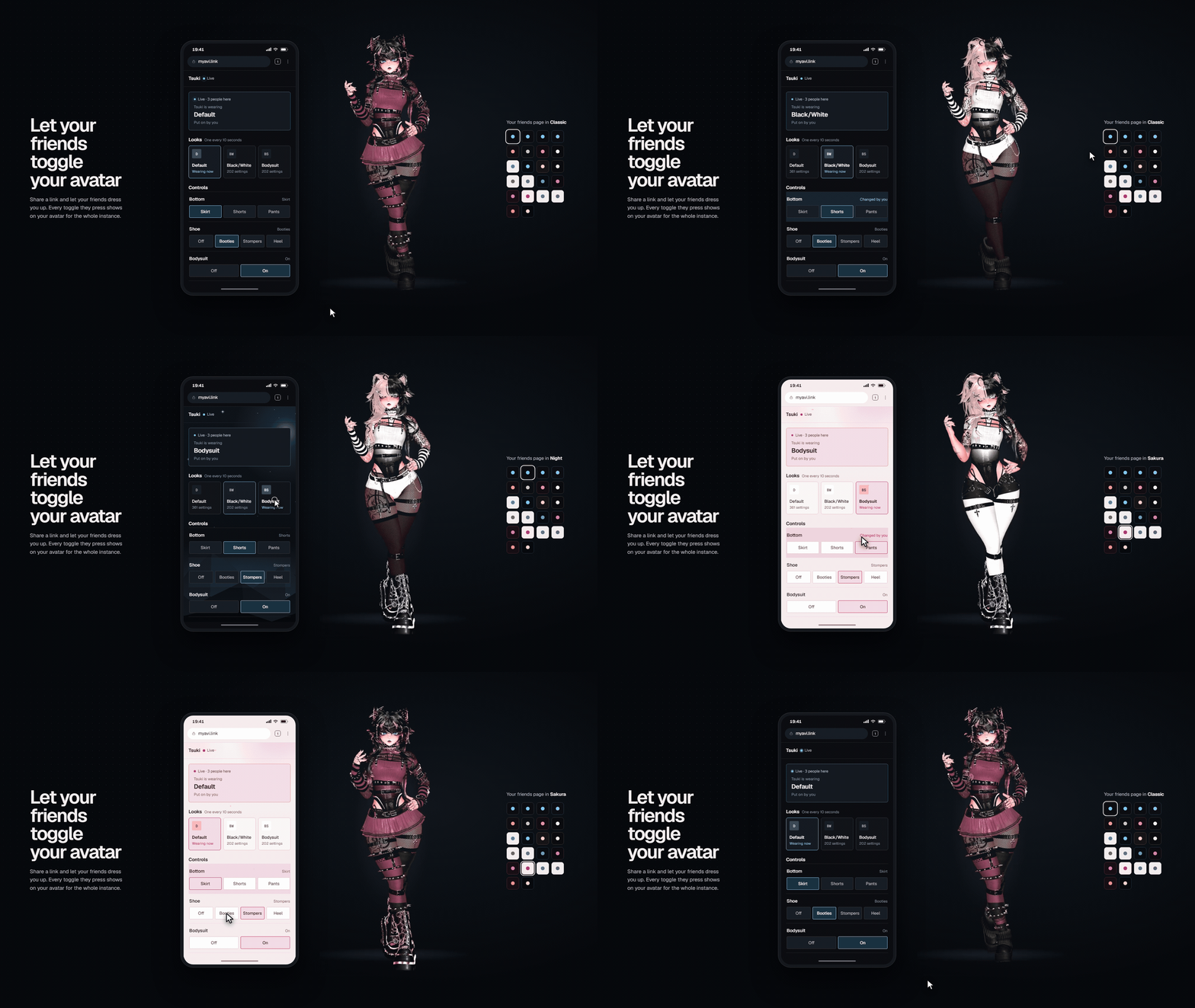
Share a link and let your friends dress you up. Every toggle presed shows on your avatar for the whole instance.
They only need a browser, on a phone or a computer. No account and nothing to install for them.
What your friends can do
- Press the toggles and sliders you picked
- Put on a whole saved look with one press, or roll a random one
- See your heart rate and the song you're playing, if you switch them on
- Make you taller or shorter, inside a range you set
- Walk you around with a movement pad, once you turn it on
- 18+ Press your OpenShock shockers or move sliders for your toys, you can limit the strength.
In the app
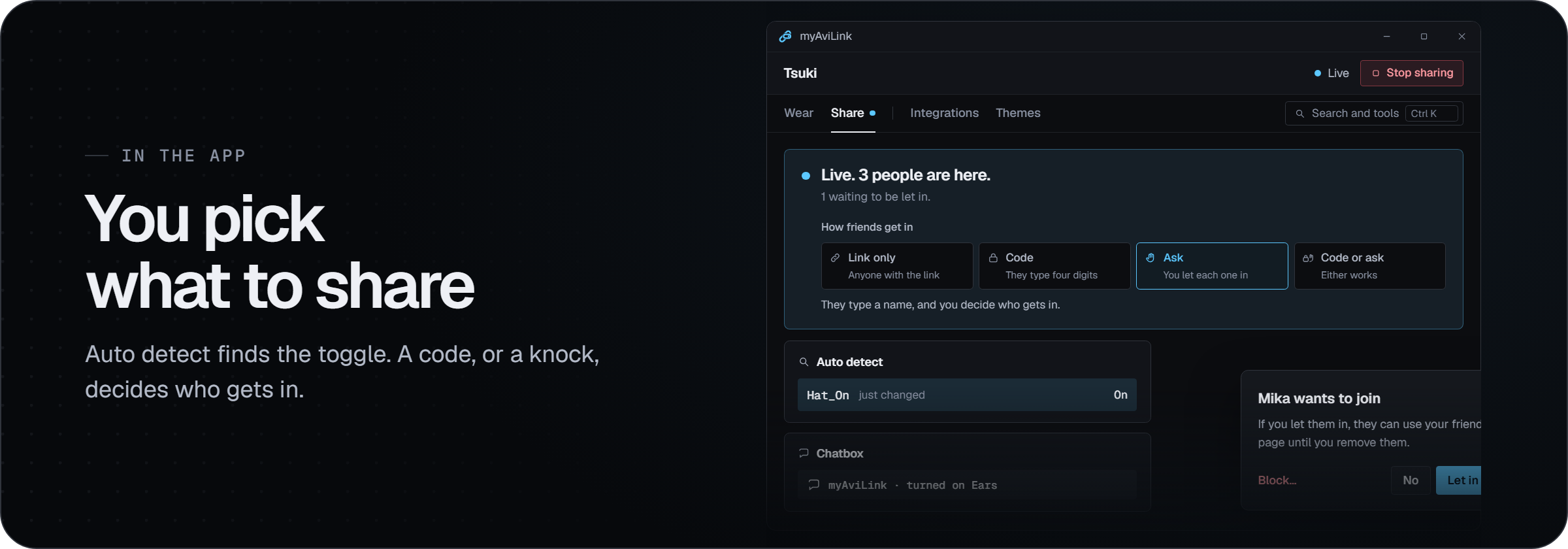
- Auto detect: flip a toggle in game and the app points at it
- How friends get in: just the link, a 4-digit code, or they ask and you let each one in
- Kick or block anyone
- Preview
- Themes
- Chatbox: say what changed, like "myAviLink · turned on Ears"
- Starts with SteamVR if you want it to
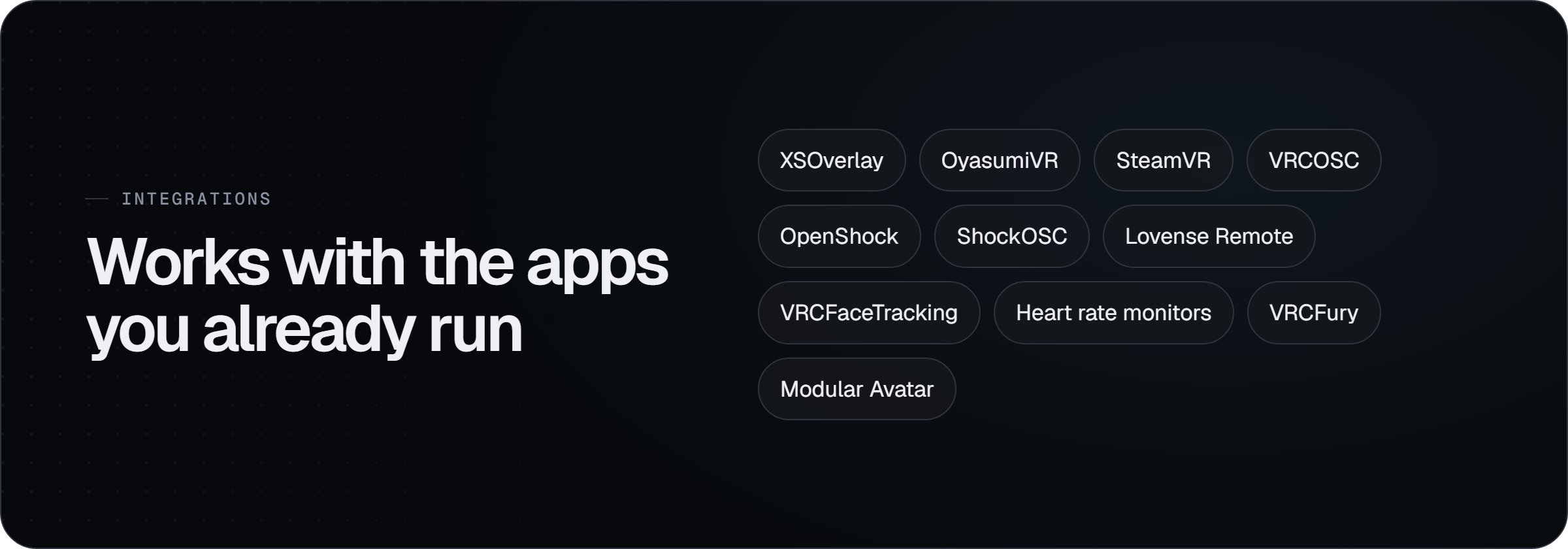
XSOverlay, OyasumiVR, SteamVR, VRCOSC, OpenShock, ShockOSC, Lovense Remote, VRCFaceTracking and Bluetooth heart rate monitors. They all keep running alongside it.
Nothing to add in Unity. Toggles built with VRCFury or Modular Avatar show up like any other, compressed avatars included.
Safe to leave running
- Your friends only get what you pick, and your PC checks every press before VRChat sees it
- Your IP stays private. The app only connects out
- One press stops it all, from the app, the tray or your wrist. VRChat's Safe Mode stops it too
Is it free?
Yes, for you and for your friends. There's no account to make.
Does it work on Quest?
Yes, when VRChat runs on your PC: Link, Air Link and Virtual Desktop all work. Standalone Quest doesn't, because the app has to run on the same PC as VRChat.
Does it work in desktop mode?
Yes.
Is it allowed in VRChat?
It uses OSC, which VRChat built so apps like this can talk to the game. Nothing in VRChat is modified.
What happens when I switch avatars?
Each avatar has its own setup. Your link stays the same.
Requirements
- Windows 10 or 11
- VRChat on PC with OSC on (Action Menu → Options → OSC → Enabled)
More at myavi.link. Questions? Ask on Discord.
Join our VRChat group
Meet people to share with. Search for myAviLink in VRChat, or open vrc.group/MYAVI.7628.
Not affiliated with VRChat Inc.
(avatar used in the promo is Tsuki ✦ VRChat Avatar PC Only (VRCFT + SPS + PCS + GoGoLoco) by CapriTsuki - Jinxxy, check them out!)