
商品描述
本商品包含 AI 生成的内容。
English setup guide and frame examples
PhotoLife | Custom Photo Frames for VRChat
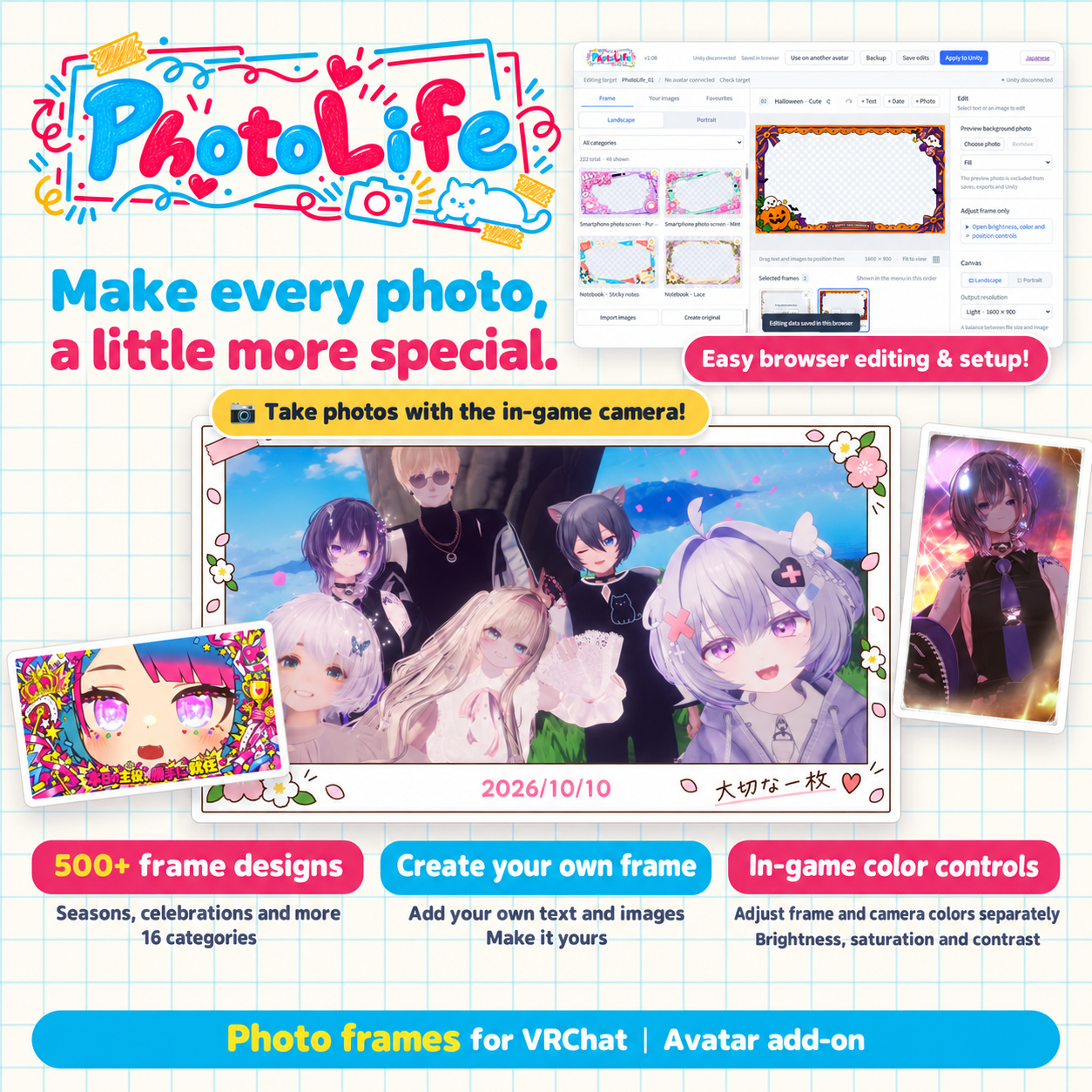
Make a group photo, an outfit snapshot or a special day feel a little more yours. Add a favorite frame, your name and a date, then take the photo with the VRChat camera.
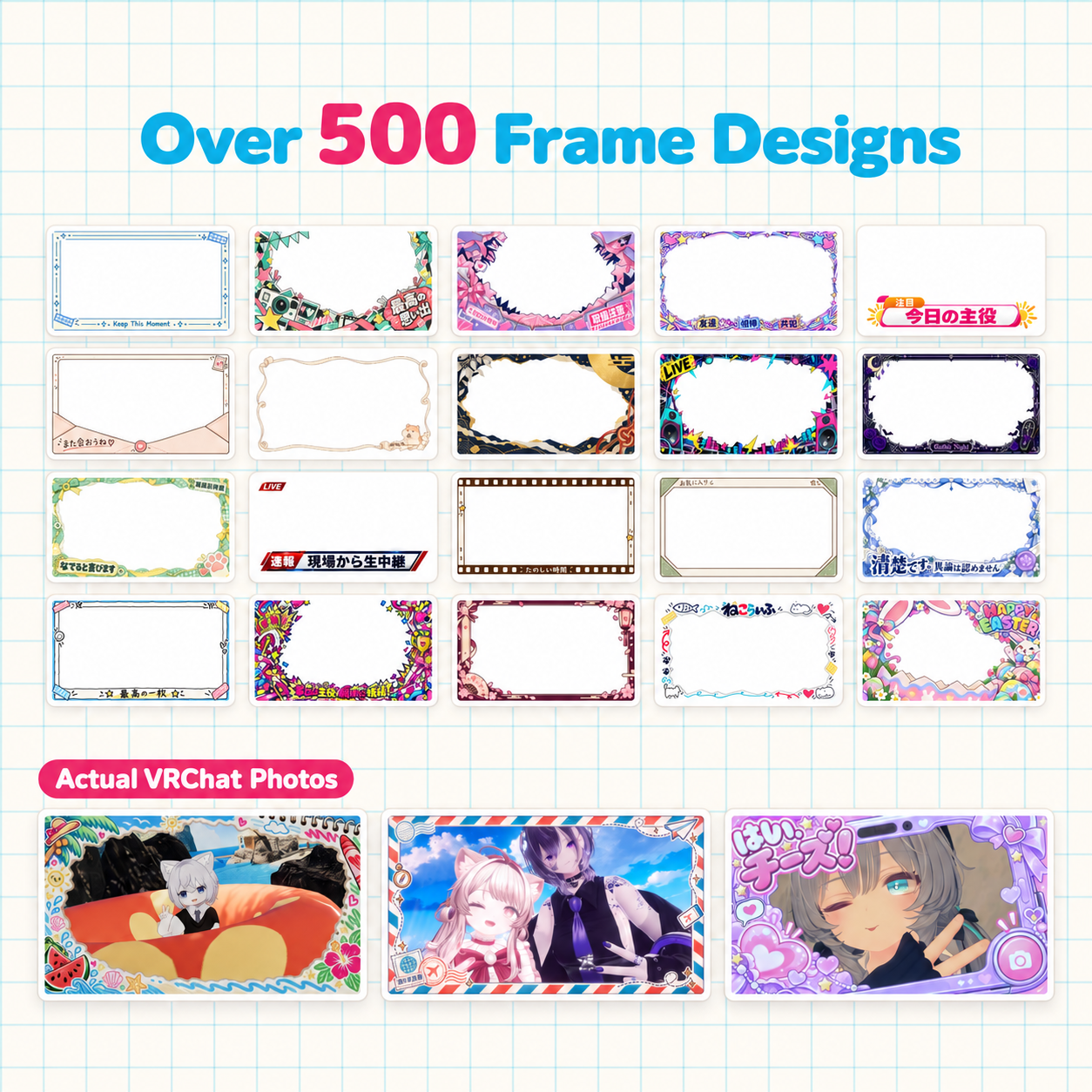
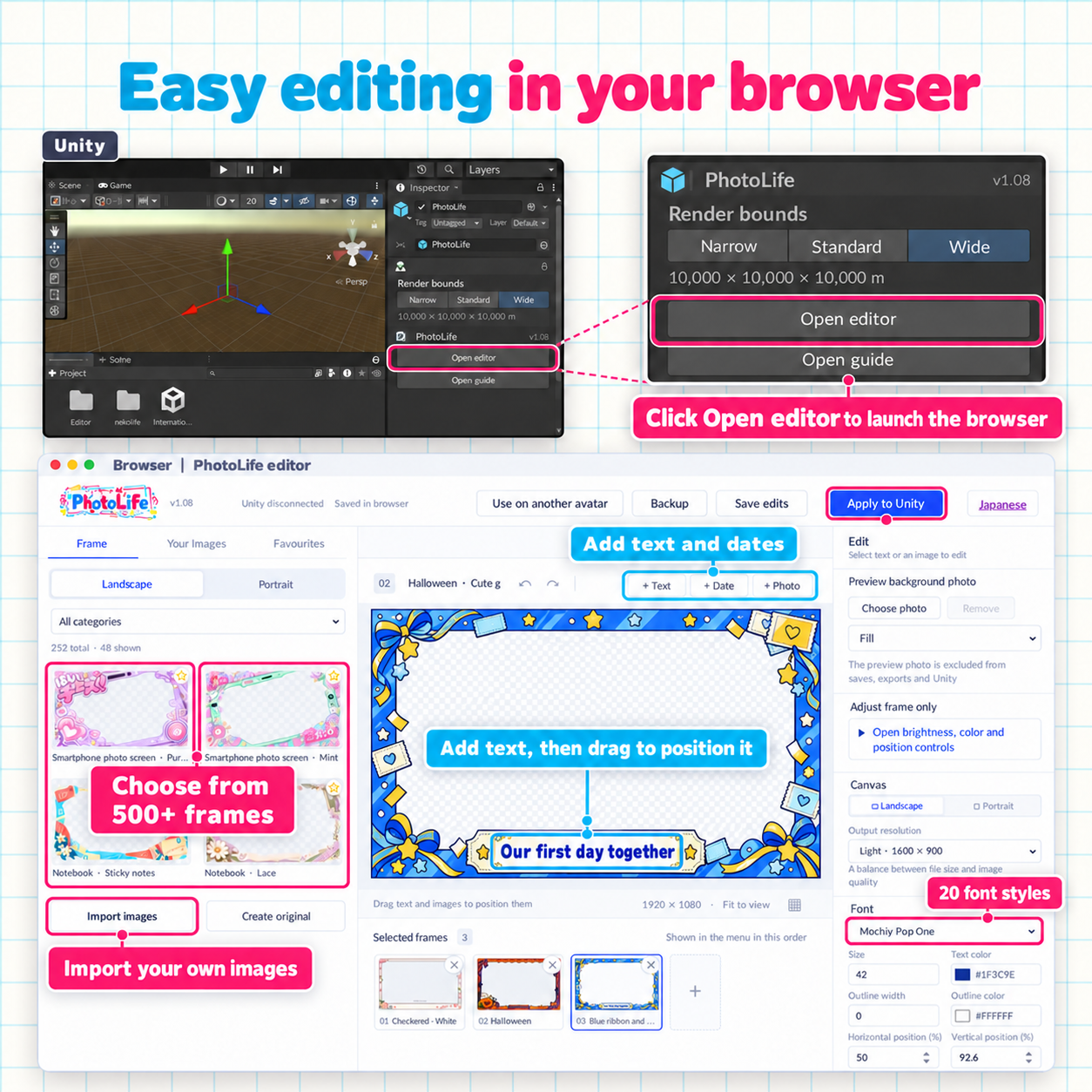
PhotoLife is a photo-frame add-on for your avatar, with a browser editor connected to Unity. Choose from over 500 frame designs, arrange text and images, or create a frame of your own.
What you can do
- Choose landscape or portrait frames for group photos, portraits, celebrations and everyday moments.
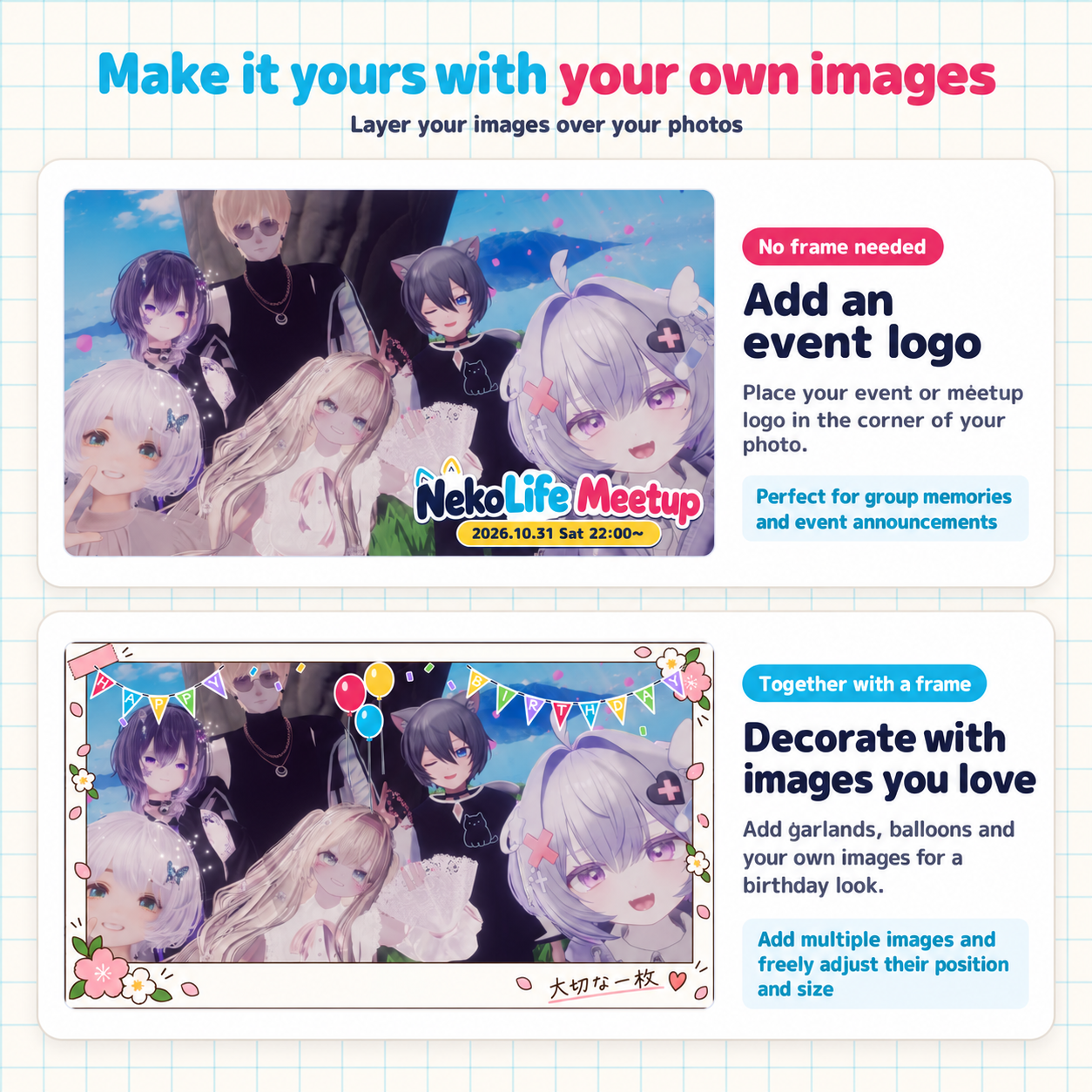
- Add text, dates and your own images. Adjust fonts, colors, position, rotation and text direction.
- Create an original frame on a transparent canvas.
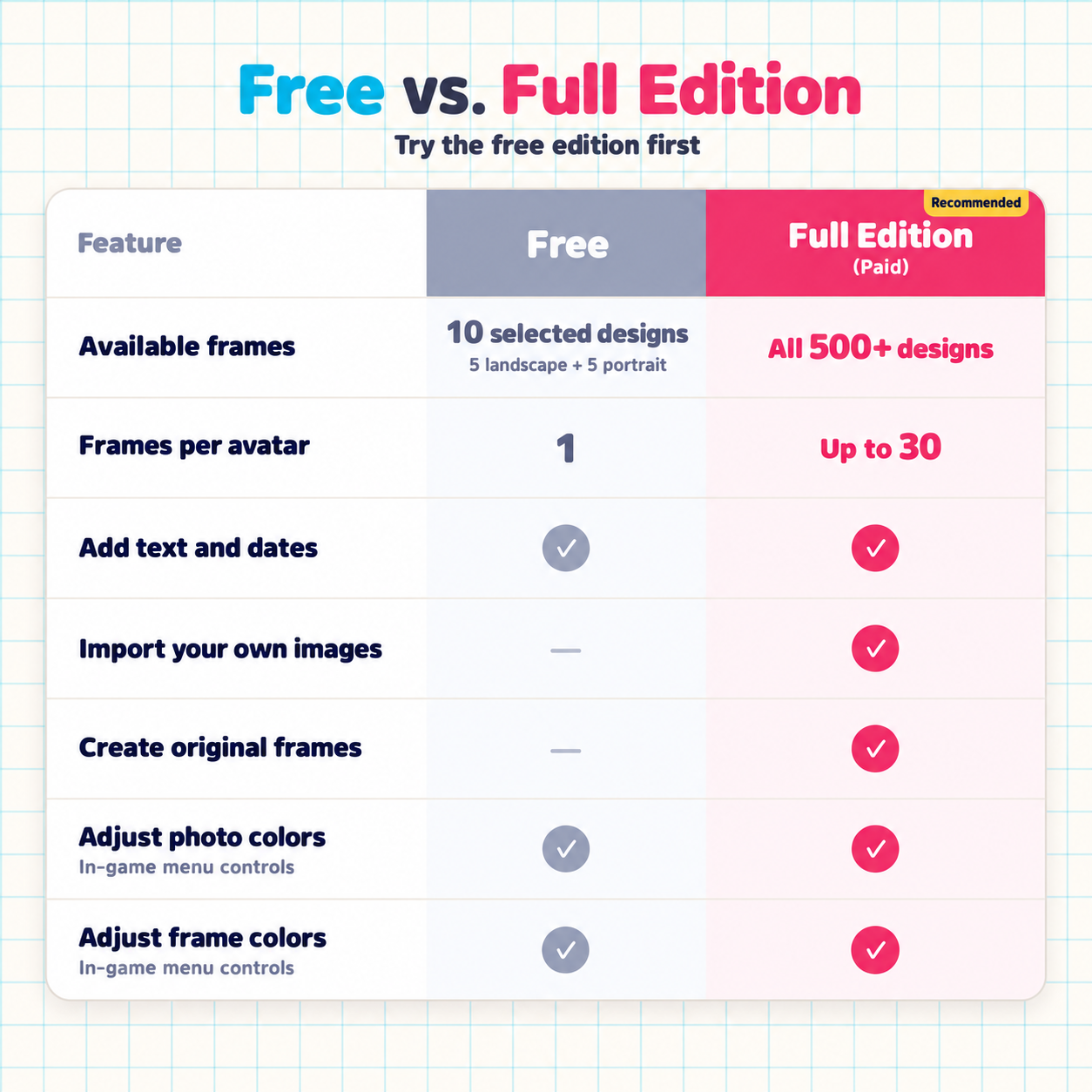
- Apply up to 30 frames to one avatar and switch between them in the Expressions menu.
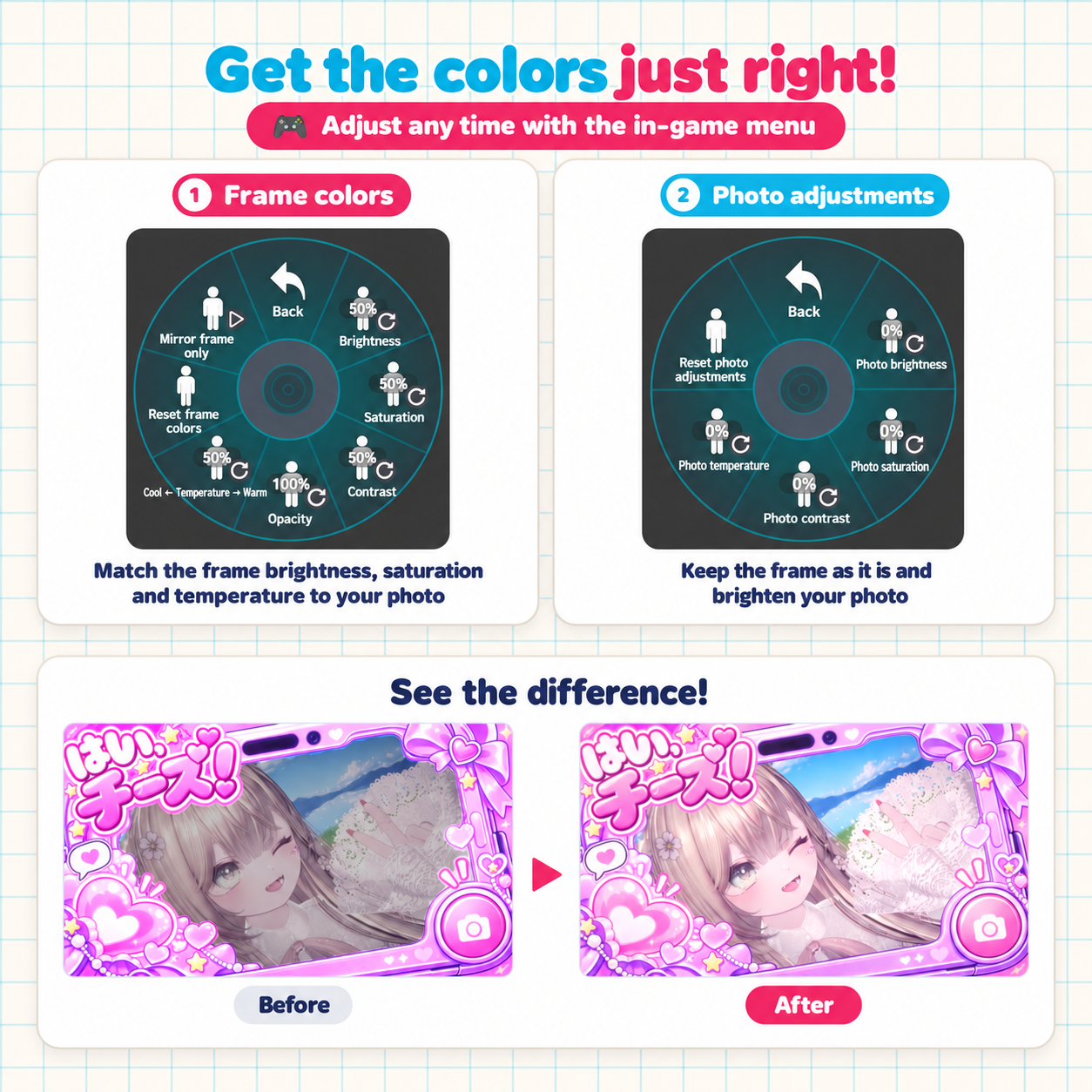
- Adjust the frame colors and camera-image brightness, saturation, contrast and temperature separately in game.
- Save a PNG, export a backup, or copy your settings to another avatar or Unity project.
Frames appear in your own camera. They are not synchronized with other players' screens. The frame starts hidden; choose a frame from the PhotoLife menu to show it.
Included in the full edition
- PhotoLife EN main package, including landscape frames and the English browser editor.
- Portrait Frame Add-on with the portrait artwork. Import it after the main package.
- English setup and user guide, troubleshooting, and terms of use.
The complete collection contains 512 frame designs: 251 landscape and 261 portrait designs. Two additional simple canvas options are built into the editor. Japanese lettering that is part of a frame's artwork is intentionally preserved.
Avatars, worlds and personal photographs shown in examples are not included.
Before you start
For PC VRChat avatars. Use Unity 2022.3.22f1 with the VRChat Avatars SDK and Modular Avatar installed. Keep Unity open while using the browser editor. Standalone Quest compatibility is not included in this release.
1. Import the PhotoLife EN main .unitypackage, then the portrait add-on if desired.
2. Drag PhotoLife.prefab from Assets/nekolife/PhotoLifeEN onto your avatar in the Hierarchy.
3. Select it and click Open editor. Choose your frames, edit them and use Apply to Unity.
4. Check the result in Unity, then upload your avatar using the VRChat SDK.
Save edits saves the draft. Apply to Unity updates the actual generated images and menus. Upload the avatar again after making changes you want to use in VRChat.
Free edition
Try one of 10 selected frames: five landscape and five portrait designs. Add text and dates, apply one frame to your avatar, and try the in-game color controls. Other frames appear as previews. Importing your own images, original-frame creation and applying multiple frames are full-edition features.
Guide and support
English guide: https://photolife-guide-en.photolife-guide.workers.dev/
Terms of use: https://photolife-guide-en.photolife-guide.workers.dev/terms.html
For help, contact nekosama through Jinxxy and include a screenshot of the screen you need help with.
About the creation process
AI tools assist with development and the creation of frame artwork. The creator makes the final design and selection decisions, and checks and adjusts the appearance and behavior as thoroughly as possible. Please review the frame images before purchasing.
This product is not affiliated with or endorsed by VRChat Inc.